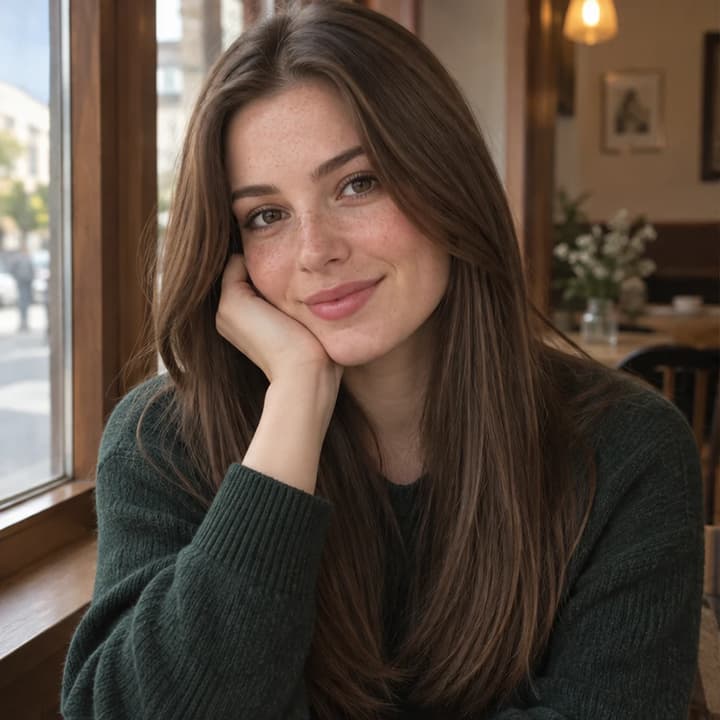

Cafe portrait · natural black
Try these settingsDeepen brown hair to black while keeping visible strands, freckles and the green sweater.
Change hair color in a photo with AI. Use a color template, upload a reference or describe your color in words, then compare and download the result.
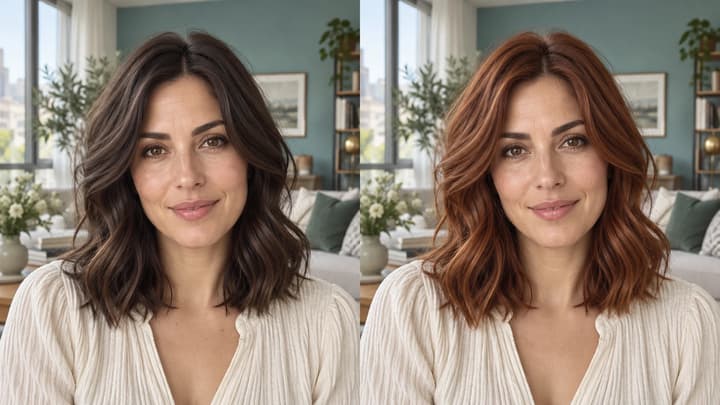
Chocolate brown brings subtle warmth to a pottery-workshop portrait. Compare the original curls and hairline along with the new color.
A rooftop portrait illustrates a black-to-platinum change on a short crop. Light hair should still show strands and shadows.
A conservatory portrait previews gray on long waves. Changing color should not change the person's age, glasses or skin texture.
A studio portrait shifts to lavender while retaining a blunt bob. Templates and uploads both supply a color reference, not a new person or haircut.
Deepen brown hair to black while keeping visible strands, freckles and the green sweater.
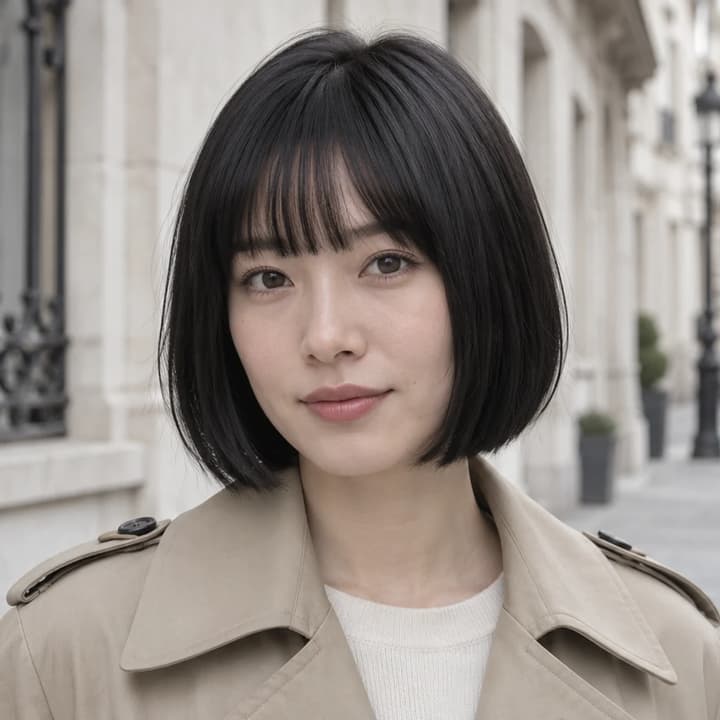
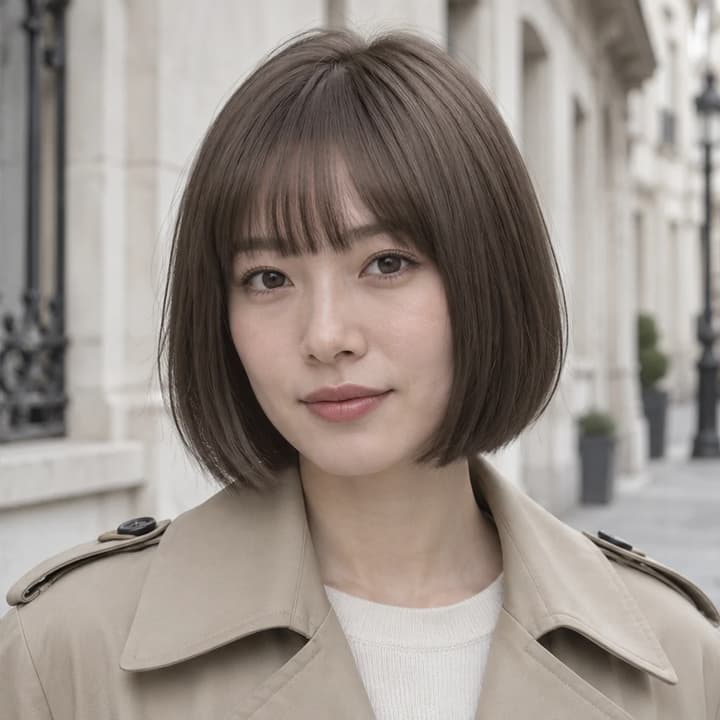
Preview a cooler brown on a straight bob without changing the bangs or face.
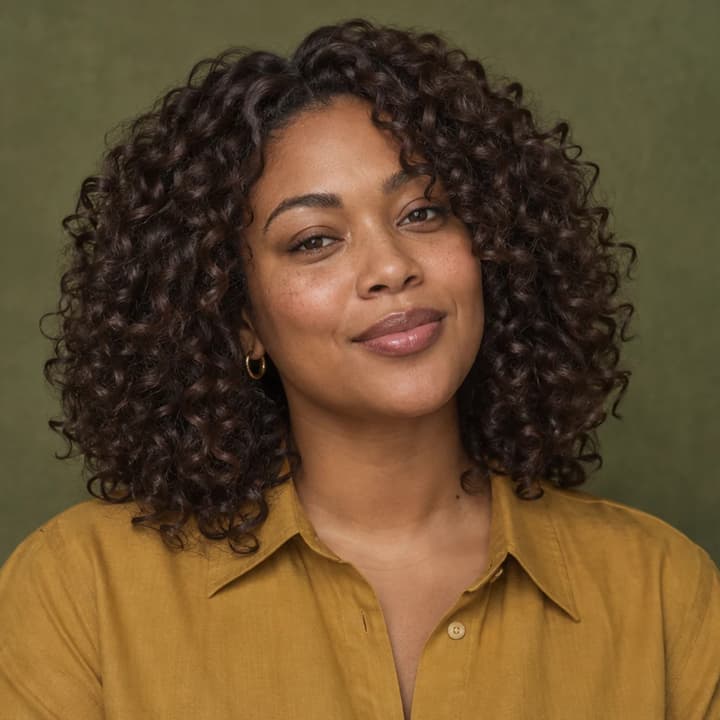
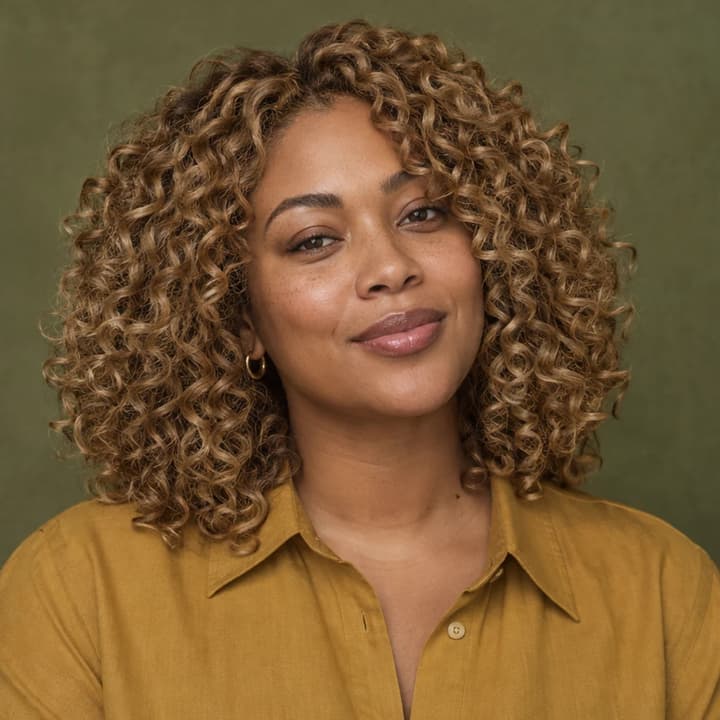
Explore warm blonde on defined curls; compare volume, edges and individual curl shapes.


Try copper on a short wavy cut while retaining the original eyebrows and stubble.


Preview silver gray on a pixie cut without changing age or skin texture.
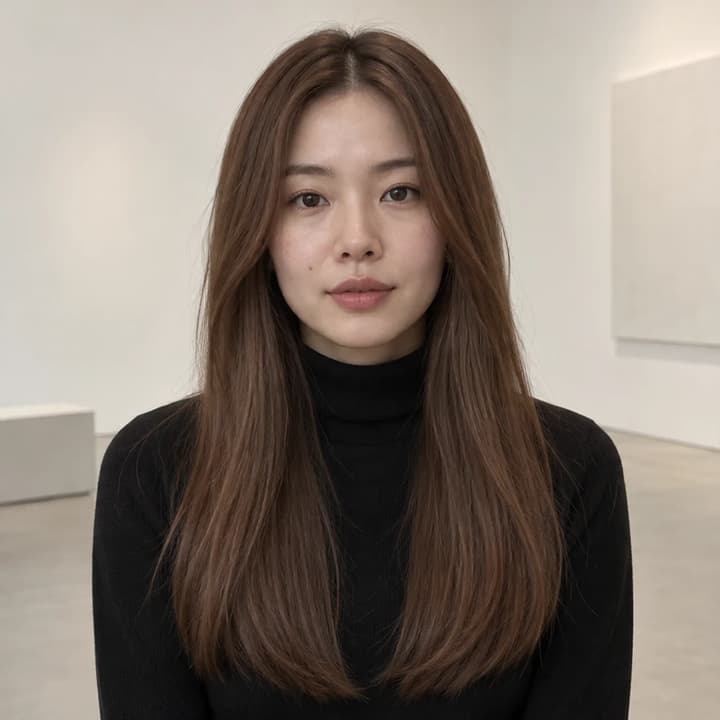
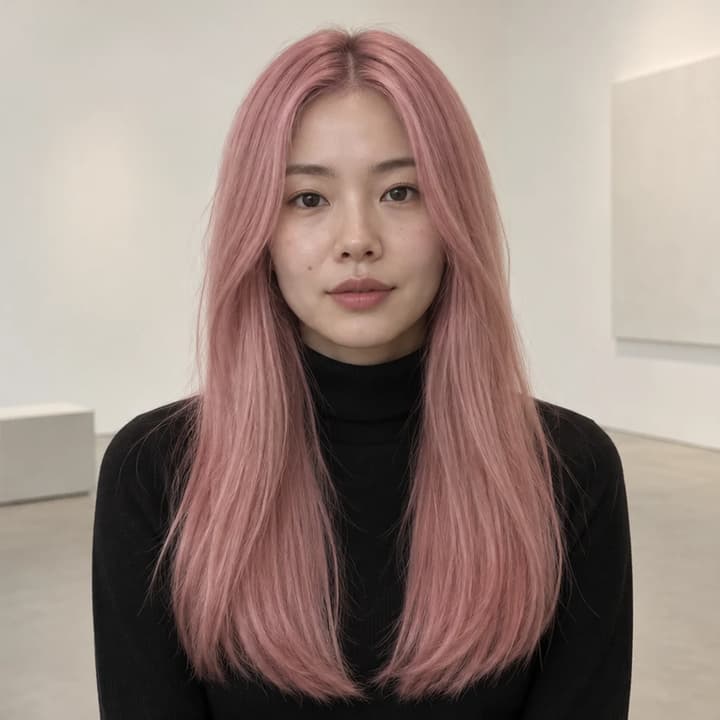
Try soft pink on long straight hair; check that the black turtleneck stays unchanged.


Explore muted purple on curls while preserving the original face and loft lighting.
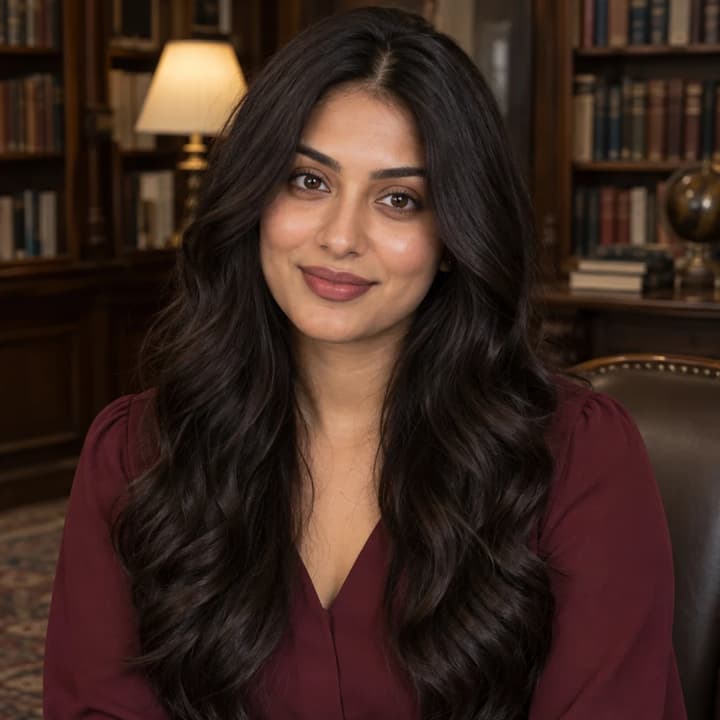
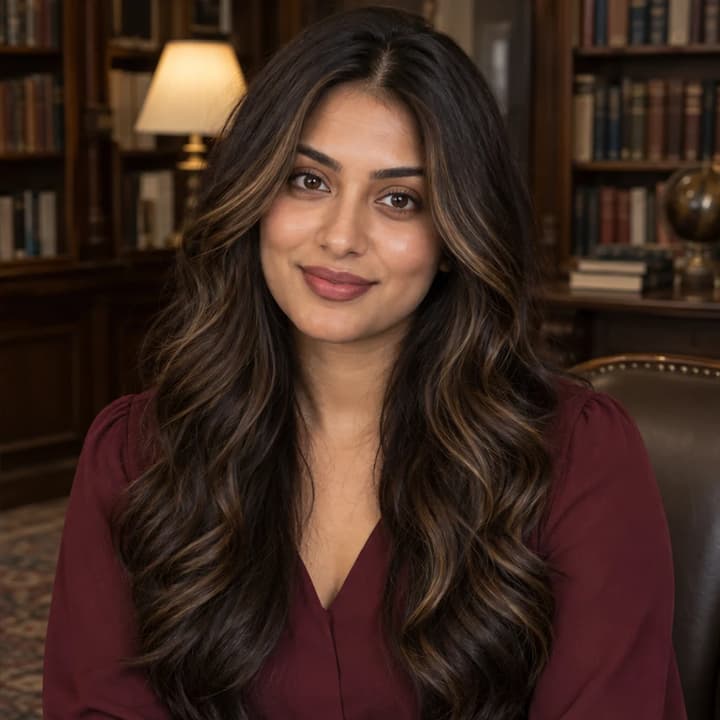
Add sparse honey face-framing highlights while keeping the dark brown base.
Upload a photo with the full hair visible.
Choose a color template, upload a reference or describe your target color.
Generate your image, compare it with the original, then download.
Look for color on skin, ears, clothes or the background.
Compare curls, braids, parting, volume and flyaway strands.
Check whether the color is too warm, too cool or applied beyond the requested area.
Compare the face, age, eyebrows, facial hair, outfit and light.
Choose one. Both send a real image reference for the target color. Your Person photo supplies identity and hairstyle; the active template or upload supplies color only.
Yes. Click the selected card again or remove its preview. You can use a written color description instead. A template, uploaded reference or nonblank color instruction is required before generating.
Yes. Use the natural black, honey blonde, platinum or silver-gray cards. Color instructions can refine warmth or request highlights instead of all-over color.
The instruction asks to retain texture, haircut, face and scene, but generative editing can alter details. Compare the result carefully; this is not pixel-preserving masked retouching.
The image is a visual reference, not a dye formula or guaranteed salon result. Real color depends on the starting hair, treatment and lighting.
Generation requires a LumiYing account and uses the credits shown before Generate. Each submission makes one image. Browsing templates or loading examples does not spend credits.
Learn how to change hair color in a photo with a template, reference image or text prompt, then review the hairline, texture and face.
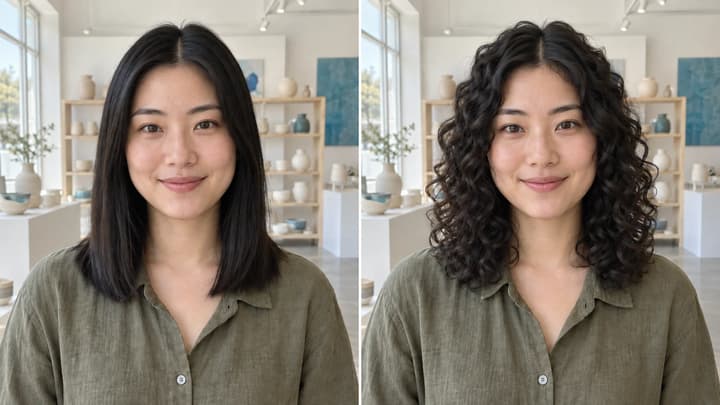
Try curls from root to tip in your photo. Choose a curl template, upload a reference or write instructions while keeping your original hair color.
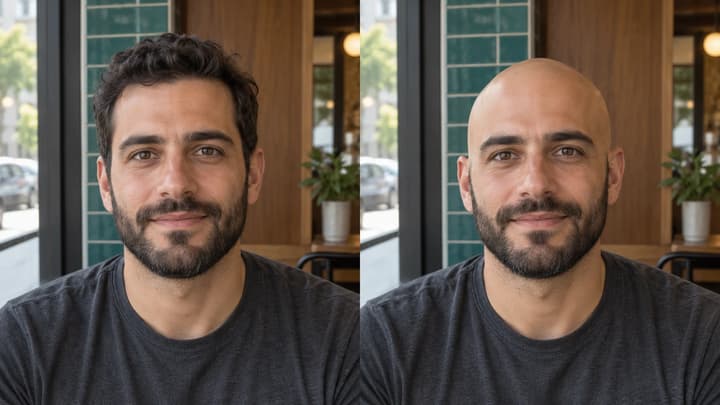
See what you would look like bald with an AI bald filter. Upload a portrait, preview a clean-shaven head, then compare and download your image.
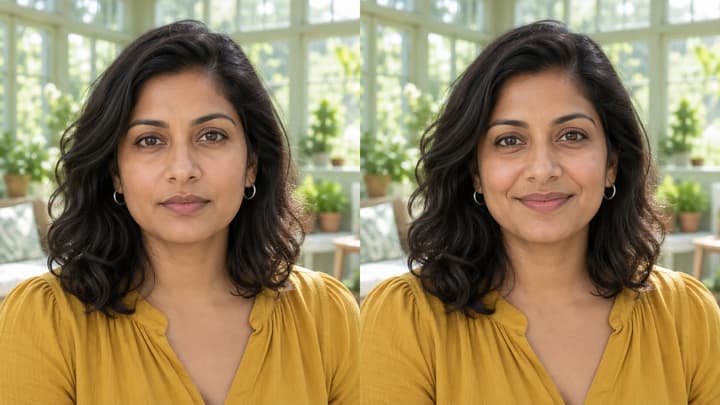
Edit facial expressions with AI. Choose a smile, reaction template or your own expression reference, then generate and review your portrait or character image.
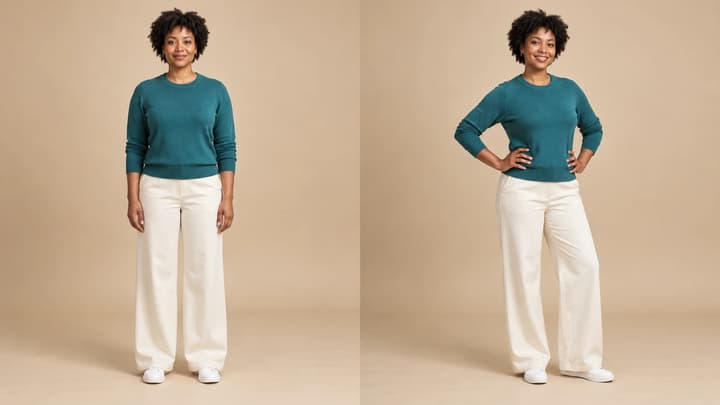
Change a person or character’s pose from a photo. Choose 8 pose templates or upload a pose reference, then generate and review the result.

Upload an image, describe the edit, and create polished visuals for products, social posts, posters, or keyframes.
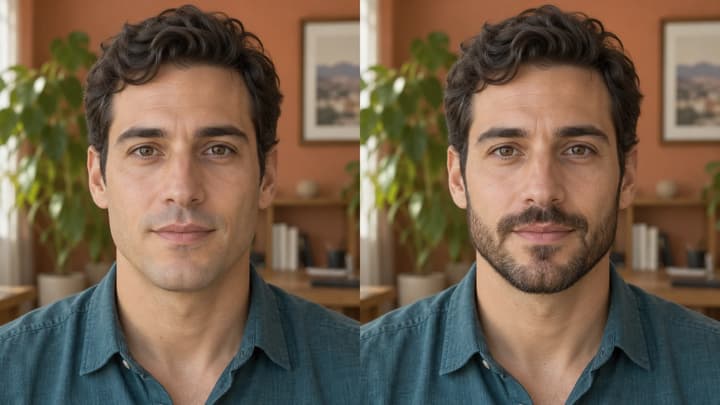
Try beard styles on your photo with a template, reference or written instructions.
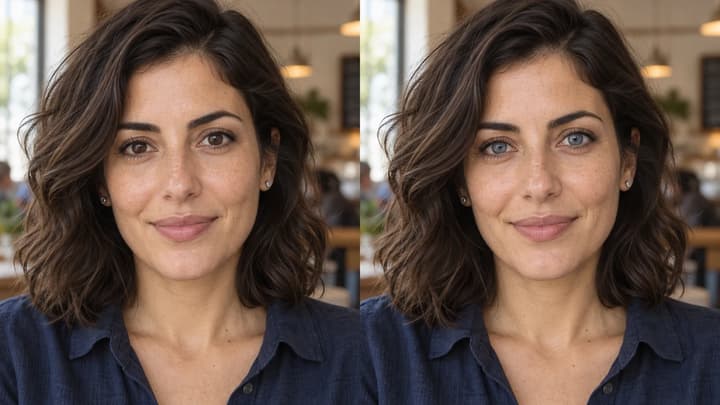
Change eye color in a photo with AI. Choose a color template, upload an iris-color reference or describe your shade, then compare and download the result.
Review credits and plans before generating.