How to Animate a Logo

Prepare your logo, write a focused motion brief and check lettering, timing and sound. Includes a real five-second AI logo animation example.

LumiYing TeamUpdated

Plan the final frame first

To animate a logo with AI, export a clear image of the complete mark, choose one reveal effect and leave time for the logo to settle. Upload it to an image-based video tool, set the duration and framing, then compare the returned clip with the original. Download the take for final trimming and sound work in your video editor.

Start by deciding what the last two seconds should show. The name should be readable, the symbol complete and the effect mostly finished. Work backward from that card to plan the entrance. A complex reveal has little value if the brand disappears into particles or the lettering keeps moving at the cut.

From static artwork to a usable intro

  1. Step 01 Prepare a clean logo image

    Use the approved artwork with sharp edges and a simple background. Export an SVG from your vector editor as PNG and include the whole mark. Leave clear space on every side. Remove a tiny tagline in an editable copy if it cannot be read at the video's intended display size.

  2. Step 02 Choose the final composition

    Match the ratio to the video you will edit. Start with 16:9 for a landscape intro. Use a suitably framed source for square or portrait delivery, keeping the complete logo away from the edges. The generator may reframe the artwork, so check the actual exported composition.

  3. Step 03 Write one effect and one ending

    Name the source elements to retain, then describe a single sweep, glow or accent. Ask for a locked frontal camera and a readable final hold. For a five-second test, spend roughly the opening second on the reveal, the middle on a small accent and the last two seconds on a steady card. These are directions to verify in the result.

  4. Step 04 Choose settings and generate

    Open AI Logo Animator, upload the source and enter your brief. Choose the model, supported duration and ratio, then inspect the quote. The starting preset is Seedance 2.0 Mini, five seconds and the 480p setting. Make a short test before planning a longer sequence.

  5. Step 05 Inspect, trim and place the clip

    Watch at normal speed, then pause at the start, middle and final hold. Compare letter shapes, spacing, colours and symbol edges against the source. Listen to the returned audio. In your editor, trim the settled tail, mute or replace unwanted sound and cut into the main footage. If lettering drifts, reduce the effect or composite the approved static logo over an animated background.

Match the source to the motion

Match the source to the motion

Artwork
A complete logo on a plain background
Export PNG, JPEG or WebP. Keep small lines and counters open at the intended playback size.
Effect
One sweep or restrained glow
Keep the wordmark stable. Place accents around the logo and have them clear before the ending.
Timing
A short reveal followed by a readable hold
Reserve about two seconds at the end of a five-second test. Review the actual timing after generation.
Delivery
A video clip for your editing timeline
Check the returned dimensions, sound and crop. Keep the original SVG or artwork for precise later compositing.

Compare three logo motion approaches

Start with the real TIDE ROAST test, then study two authored vector reveals. Each source logo and suggested brief can be loaded for a new video attempt.

Horizon layered reveal

The horizon arc opens first, then the sun and reflection shapes arrive before the name.

Logo reference
Animation video
Motion brief

Reveal the existing dark horizon arc, then the ochre sun and the three reflection shapes in a short sequence. Softly reveal the Horizon name after the symbol is complete. Use the uploaded logo as the source artwork. Preserve its spelling, colours, shape and proportions. Keep a locked frontal camera and a clean light background. Finish with the complete logo readable and still for the final two seconds. No added words or objects.

Load logo and brief

Open-source vector motion reference. Loading prepares this logo and a suggested five-second AI brief. Pixel2Motion · Nolan Lai · MIT
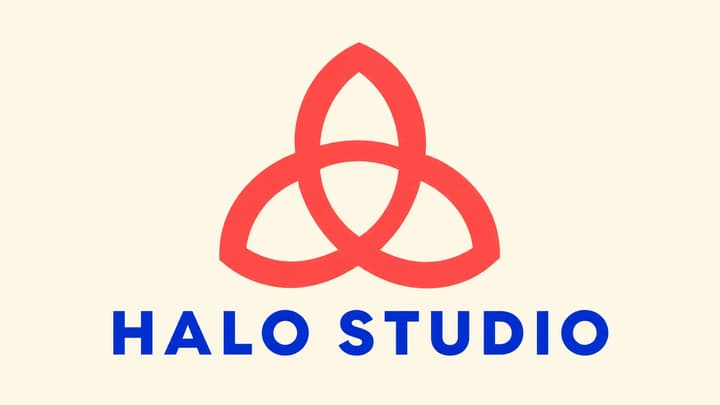
Focus aperture reveal

Individual aperture blades collect into a ring, a gold blade appears, and the Focus name follows.

Logo reference
Animation video
Motion brief

Bring the existing dark-green aperture blades together into their original ring. Keep the central opening clear, introduce the gold accent and softly reveal the Focus wordmark. Use the uploaded logo as the source artwork. Preserve its spelling, colours, shape and proportions. Keep a locked frontal camera and a clean light background. Finish with the complete logo readable and still for the final two seconds. No added words or objects.

Load logo and brief

Open-source vector motion reference. Loading prepares this logo and a suggested five-second AI brief. Pixel2Motion · Nolan Lai · MIT

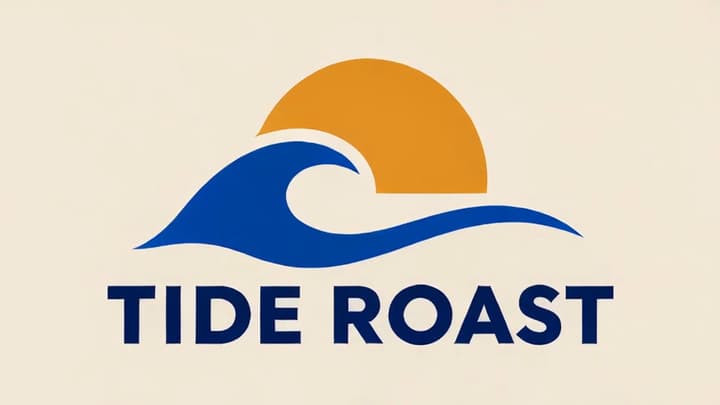
TIDE ROAST

We submitted one TIDE ROAST image to Seedance 2.0 Mini at five seconds, 16:9 and the 480p setting. The returned file is 864 × 496 at 24 fps, about 5.09 seconds, and includes audio. A sweep and a small ripple appear early, while the latter portion is nearly still. The name remains readable in this take, though the blue and edge rendering differ slightly from the source. This is an ambient reveal around a visible logo. Judge the whole clip against the source and your intended edit.

Logo reference
Animation video
Motion brief

Create one short logo reveal video from the uploaded logo. Treat the image as the source brand artwork. Preserve its TIDE ROAST spelling, wave-and-sun symbol, proportions, navy lettering, blue wave and ochre sun. Use a locked frontal camera and a clean warm ivory background. In the opening second, reveal the existing artwork with a soft light sweep. Add one gentle ripple beside the blue wave, then settle. Keep the logo centered with generous margins and hold the complete readable logo still for the final two seconds. Do not redraw letters, introduce extra words, stretch or spin the lettering, add objects, captions, borders, narration or music. Return one video.

Load logo and brief

LumiYing generation test · five seconds · 480p setting.

Fix the visible problem

Letters change shape
Too much motion around the wordmark
Simplify the effect, ask for stable lettering and use a larger, clearer source. For exact typography, overlay the approved logo in your editor.
The logo is cut off
Framing leaves too little clear space
Prepare the source in the intended ratio with wider margins. Check every edge in the returned clip.
The ending is still busy
The effect occupies the whole clip
Ask for an earlier finish and a longer readable hold. Trim the usable steady portion after reviewing.
The result sounds wrong
The model returned unwanted audio
Listen to the full clip and mute or replace the track during final editing.
The reveal starts with the logo visible
An image reference anchors the existing design
Treat this take as an animated brand card. For a precisely timed blank-to-logo transition, use masks and the approved logo artwork in a timeline editor.

Frequently asked questions

What does this AI logo animator produce?

It generates one short video from your uploaded logo and motion brief. Use it for logo reveals, video intros, outros or branded transitions.

Can I upload an SVG logo?

Export the SVG as a JPEG, PNG or WebP first. For a clean starting point, use a PNG with a plain background and enough margin around the mark.

Will it keep every letter exactly the same?

The instructions ask the model to preserve the spelling, symbol, colours and proportions. Generative video can still change details. Compare the beginning, middle and end with the source before approving a take.

Can I control the timing and background?

Describe the effect, background and final hold in the motion brief. Choose the available duration and ratio for your model. Timing is guided by the prompt, so inspect the returned clip.

How much does logo animation cost?

The form shows the current credit quote for the selected model and duration. Loading a preset only fills the form. Generation uses credits when you submit.

Does the result include sound or transparent video?

A model may return an audio track, so listen before publishing and mute or replace it in your video editor when needed. For transparent delivery, composite your approved source artwork in an editor with an alpha-capable export.

Give your logo a clear entrance