How to Make a Website Banner
Plan a website banner around one message. Prepare your reference, choose a ratio, check text and product details, then test cropping and links before publishing.
LumiYing TeamUpdated
Decide what the banner needs to do
Write one visitor action
For a collection launch, the goal may be to open the collection. Choose one main message and a matching action such as Explore the collection.
Check the destination first
Read the target banner slot dimensions in your website editor. Check how that section behaves on desktop and mobile before choosing the image ratio.
Prepare the source material
Use a clear product image with a visible outline and label. Keep the exact headline, CTA and any price or date in a separate text note for comparison.
From a brief to a published website banner
Measure the banner slot
Find the width and height recommended by your website theme or page builder. Divide width by height to identify the intended shape. A 1600×900 slot matches 16:9. A much shallower header may need a wider ratio and a separate mobile composition.
Write the message and visual brief
Start with one sentence explaining what visitors should learn or do. Add the exact headline and CTA in quotation marks, then describe the product, palette and placement. For a ceramic collection, put the bowl on the right and give the headline a calm area on the left.
Choose a reference and generate
Open AI Banner Generator, add one product or brand reference if continuity matters, and enter the brief. Choose the closest supported ratio and start at 1K while comparing directions. Review the credit price, generate and download the PNG. Keep the original reference and master image.
Proofread and compare the product
Read every word against your text note, including punctuation, prices and dates. Compare the product shape, color, label and proportions with the reference. For an error, use the image editing action with a focused correction or amend the brief and generate another version.
Prepare a version for the placement
Check the actual downloaded width, height and file size. Resize a copy to your target dimensions and inspect it at the displayed size. Preview the site’s desktop and mobile crops. If a narrow crop removes the headline or subject, create a separate composition for that shape. Keep important page text as website text when it needs to reflow or remain selectable.
Add it to the website and test
Upload the prepared image in your page builder. Set an accurate alternative description and add the actual destination link or website CTA. A button drawn inside the PNG is part of the image, so configure the clickable action in the page. Preview the page on desktop and mobile, test the link and check that the headline remains readable before publishing.
Choose the image for the actual slot
Six checks on different campaign ideas
These original AI-generated concepts illustrate six review tasks. Load a brief and settings to adapt the direction for your own banner.
Separate product and copy

Create one flat digital marketing banner in 16:9. Cobalt-blue handmade bowl and two cups on the right, warm ivory and terracotta, realistic product photography. Refined navy serif headline on the left. Render this headline exactly "Everyday rituals". Render this CTA exactly "Explore the collection".
The ceramic bowl occupies the right side while the headline has its own area. After adding your reference, check the rim, glaze and cup proportions. If a crop squeezes the text against the bowl, request more space or use a different layout.
Load this exampleShorten before shrinking
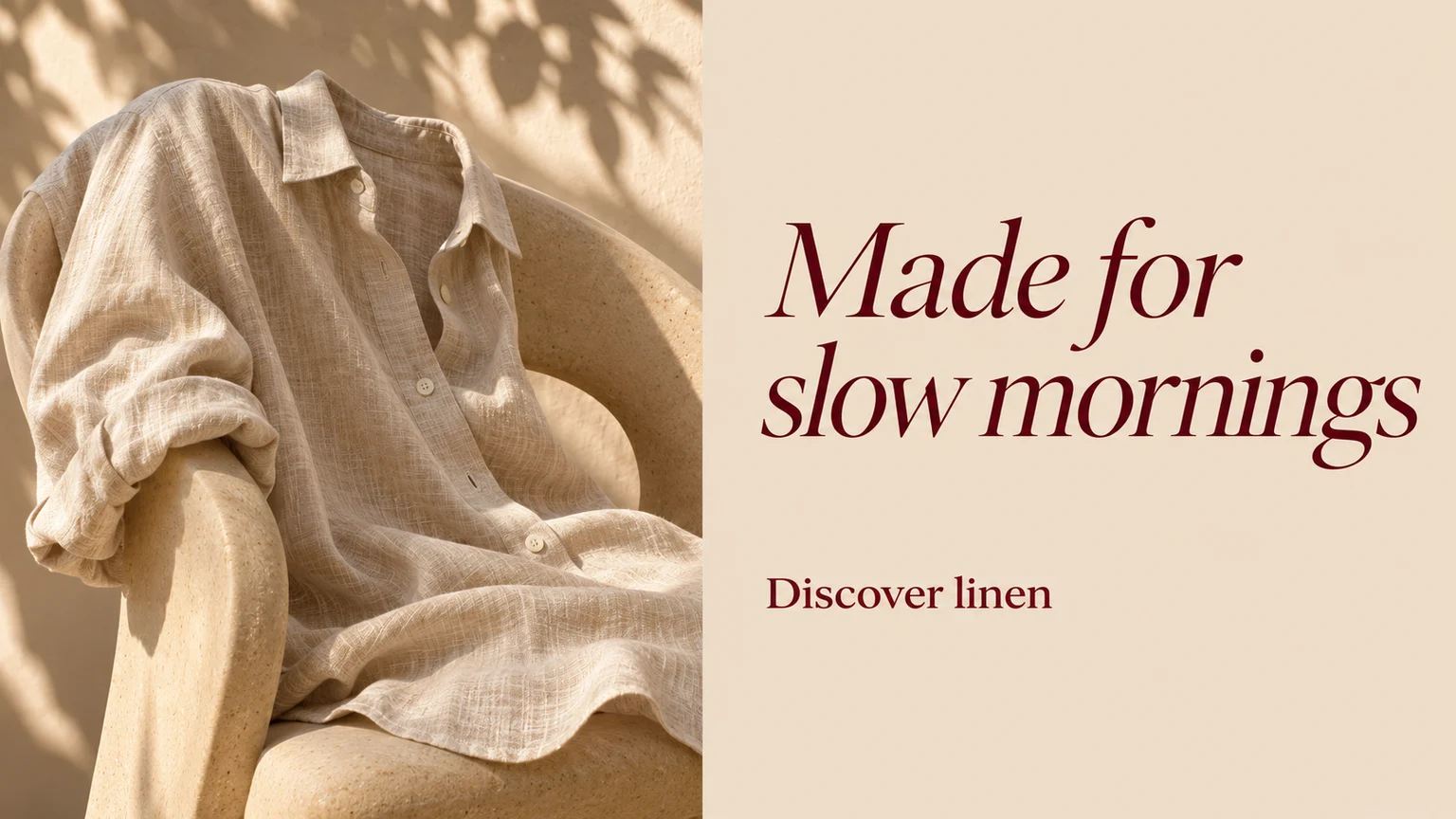
Create one flat digital marketing banner in 16:9. Oatmeal linen shirt draped over a chair on the left, warm sand background on the right, elegant burgundy typography. Render this headline exactly "Made for slow mornings". Render this CTA exactly "Discover linen".
The linen headline uses a quiet background and two lines. At the target width, read it without zooming. If the line becomes too small, shorten the wording and keep the longer explanation in the page copy.
Load this exampleKeep one clear hierarchy
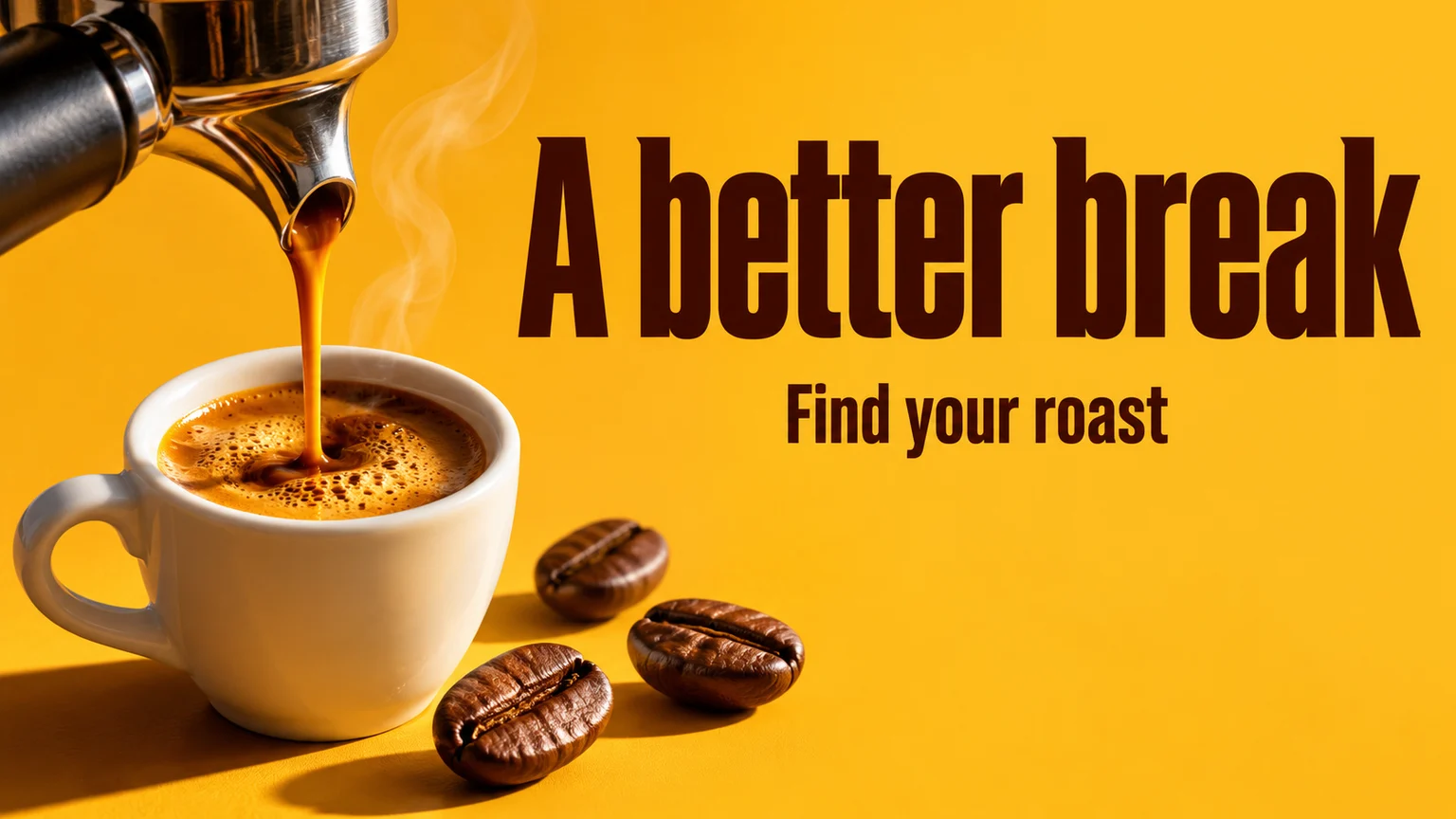
Create one flat digital marketing banner in 16:9. Espresso pouring into a white cup at lower left, mustard-yellow studio, deep chocolate condensed typography at upper right. Render this headline exactly "A better break". Render this CTA exactly "Find your roast".
In the coffee concept, the headline is larger than the action line. Check what you notice first at thumbnail size. Reduce the CTA or simplify the scene when multiple elements compete for equal attention.
Load this exampleCheck the narrow crop
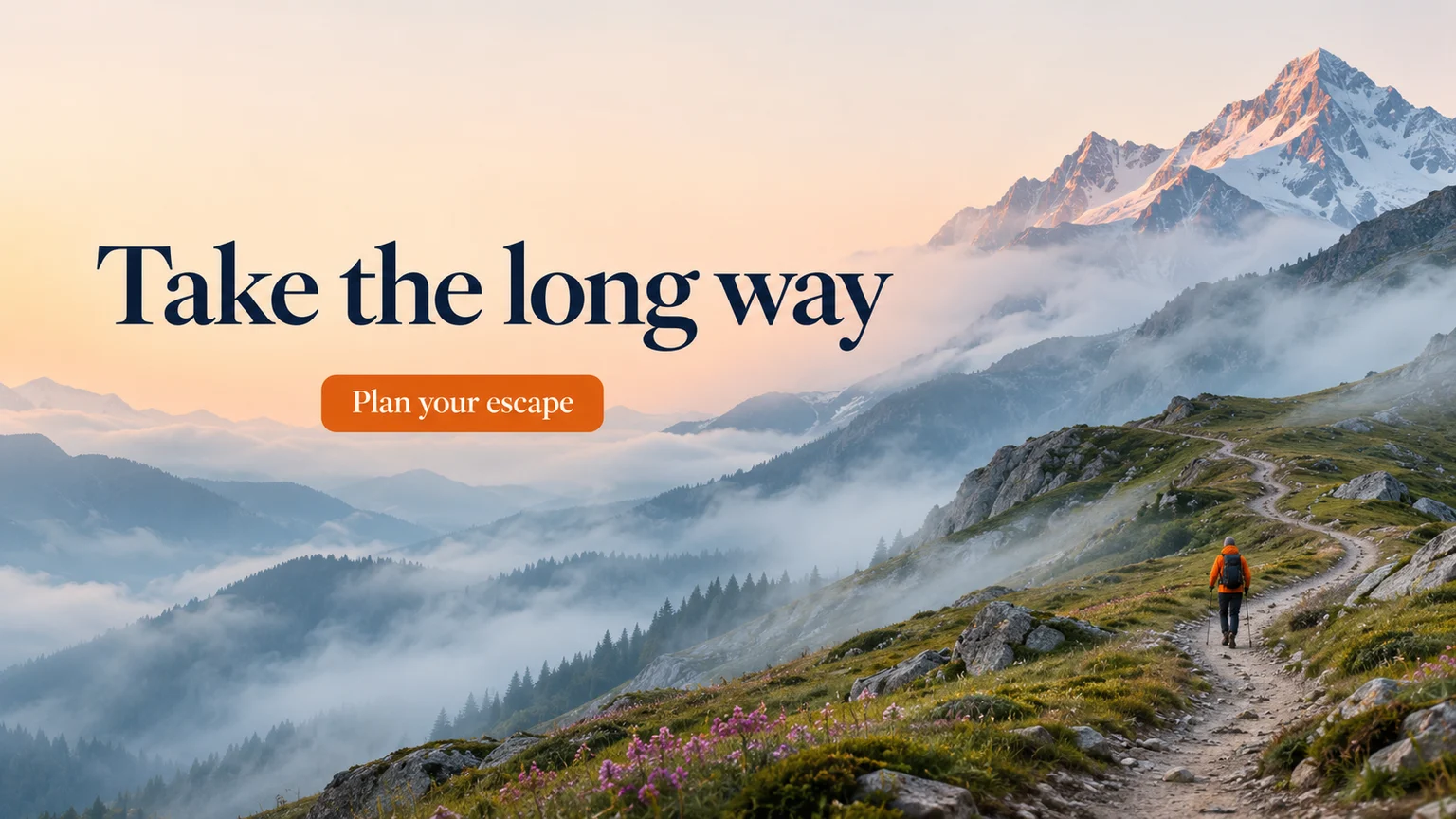
Create one flat digital marketing banner in 16:9. Wide misty alpine landscape at dawn, tiny orange-jacket hiker at lower right, calm sky, navy editorial type and an orange CTA. Render this headline exactly "Take the long way". Render this CTA exactly "Plan your escape".
The landscape provides atmosphere, but a centered mobile crop can remove both the copy and the hiker. Test the actual page preview. Generate a separate narrow or portrait composition when the target container requires it.
Load this exampleCompare the label
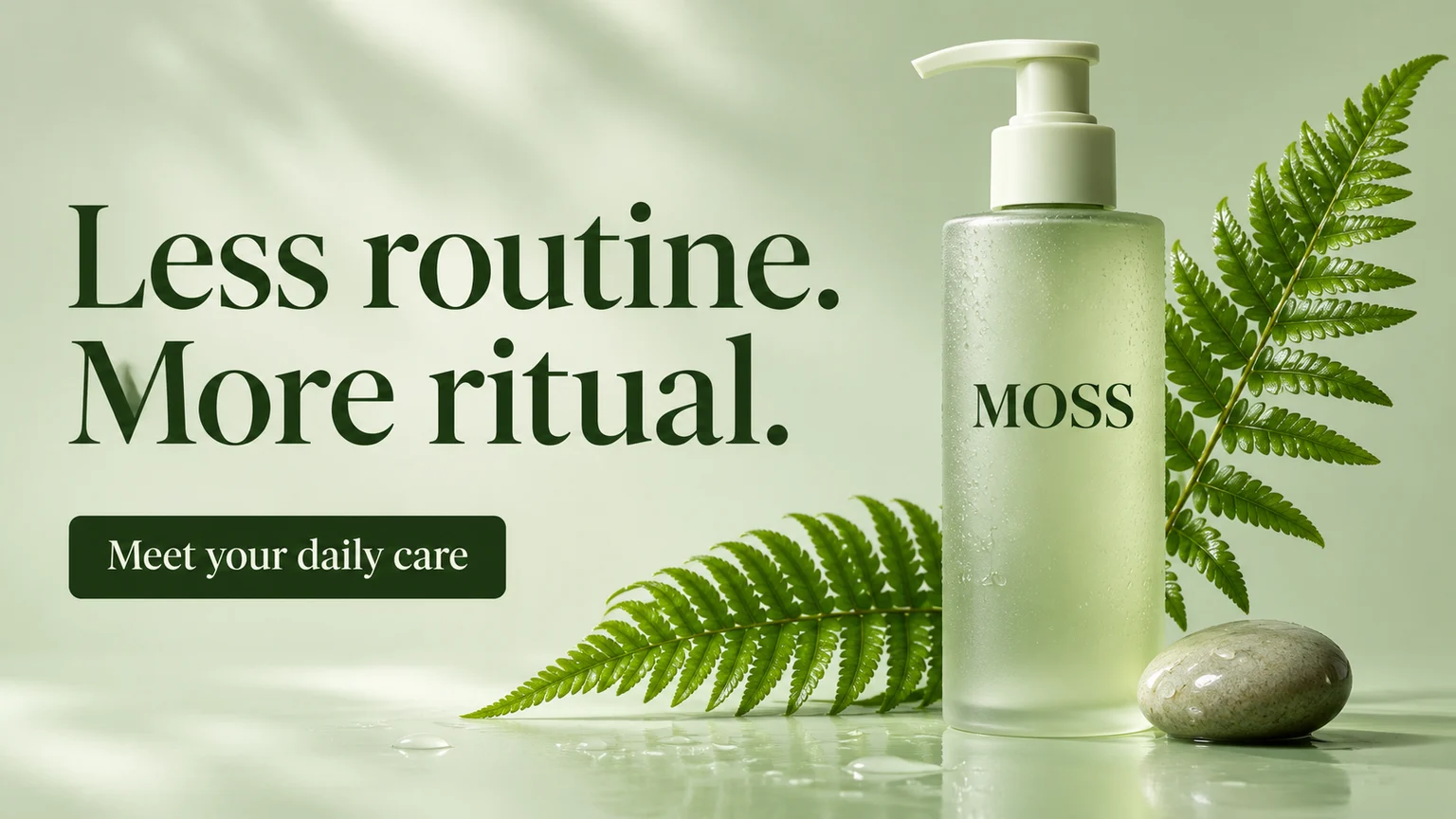
Create one flat digital marketing banner in 16:9. Frosted pale-green pump bottle labelled MOSS on the right, fern leaves, pale sage background, deep-green serif lettering on the left. Render this headline exactly "Less routine. More ritual.". Render this CTA exactly "Meet your daily care".
The MOSS bottle shows how packaging and a new headline share the canvas. With a real reference, compare every visible label character and the pump shape. Use a focused edit for a mistake and inspect the revised image again.
Load this exampleVerify event information
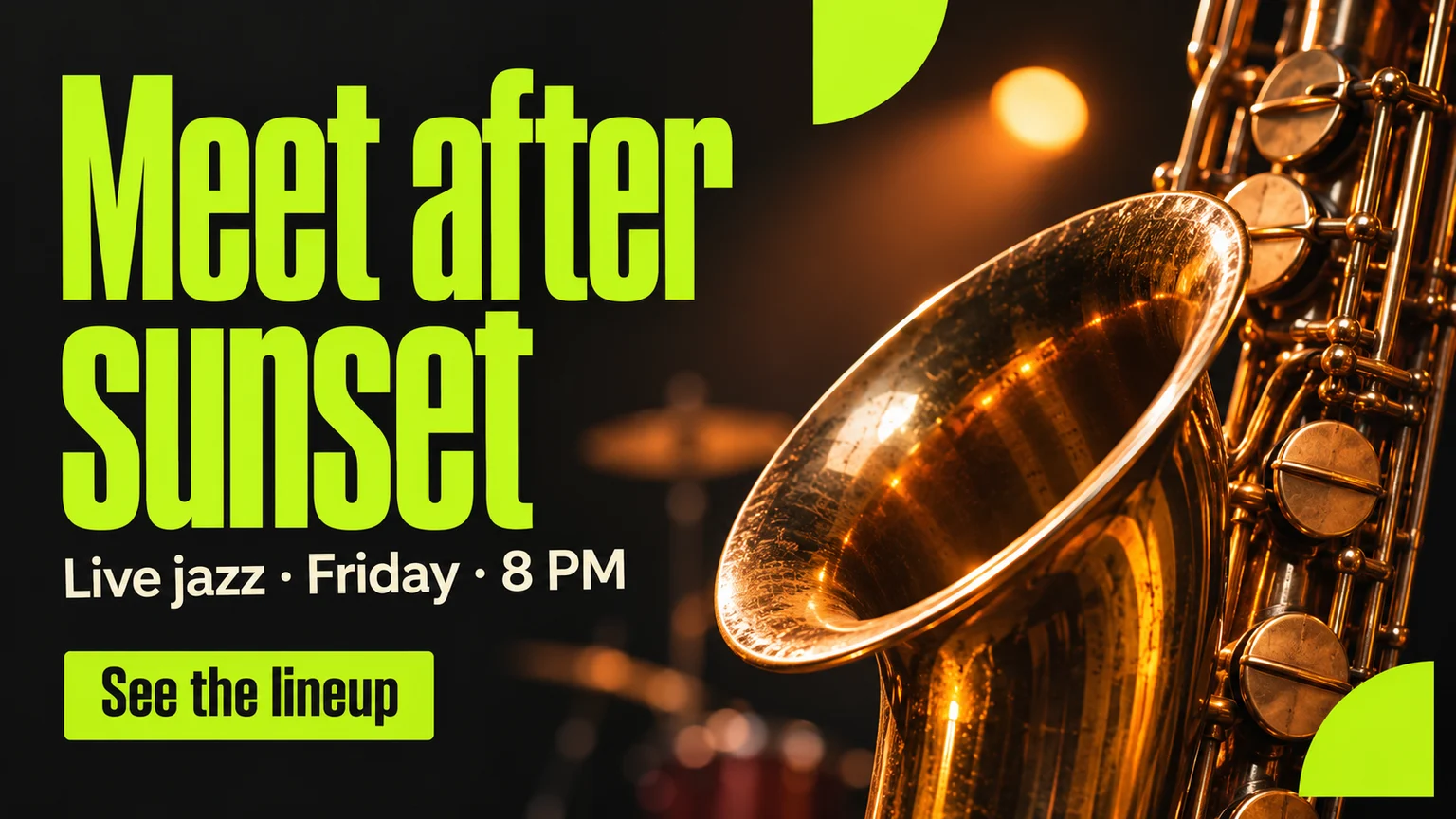
Create one flat digital marketing banner in 16:9. Brass saxophone on the right, charcoal background, lime headline on the left, ivory supporting line exactly Live jazz · Friday · 8 PM. Render this headline exactly "Meet after sunset". Render this CTA exactly "See the lineup".
The jazz concept contains a day and time alongside the main invitation. Replace the sample information with your actual event details. Check them against your listing, then link the banner to the matching ticket or lineup page.
Load this exampleFix a specific problem
Related tools and guides

AI Banner Generator
Create website and campaign banners from a text brief or one reference image. Set the aspect ratio and resolution, generate a PNG and refine it for your placement.
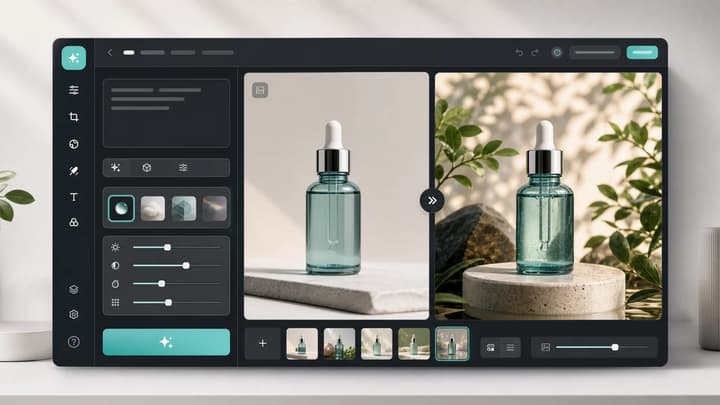
AI Image Editor
Upload an image, describe the edit, and create polished visuals for products, social posts, posters, or keyframes.
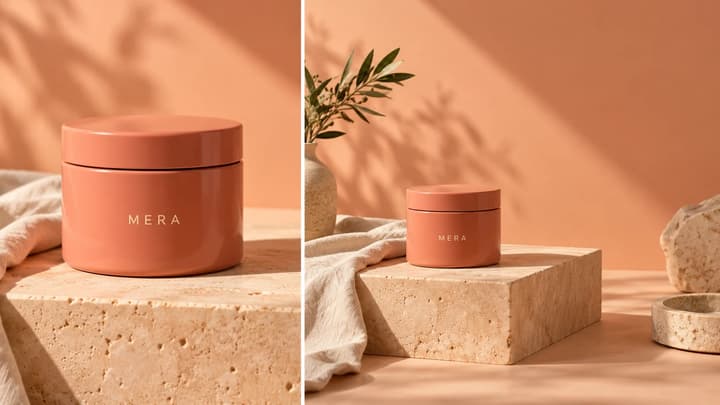
AI Image Extender
Extend a photo on an editable canvas. Choose the ratio and resolution, move, resize or rotate the original, then generate the surrounding scene.
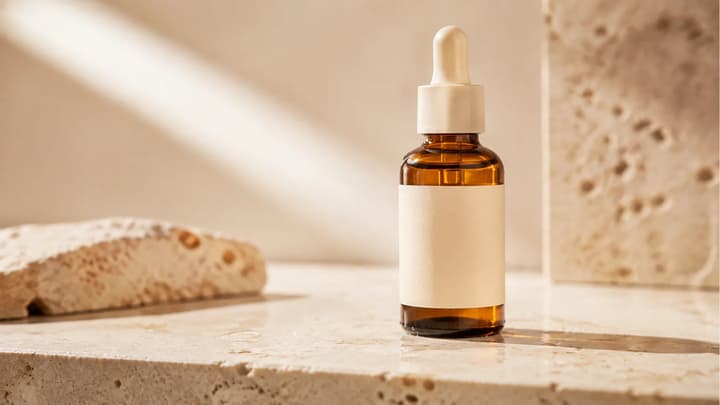
AI Product Video Generator
Turn product photos into AI product videos. Direct camera motion and lighting, generate short clips, and review the result before using it in your next campaign.
Banner generator questions
Can I add a product or brand image?
Yes. Upload one JPEG, PNG or WebP up to 30 MB. Describe which product or brand details should remain recognizable, then review them in the result.
What file does the tool create?
One static PNG. Choose 21:9, 16:9, 3:2, 1:1 or 9:16 and a 1K, 2K or 4K resolution setting.
Can I choose exact pixel dimensions?
Choose the supported ratio and resolution here. Check the downloaded image dimensions, then resize or crop a copy in an editor to meet your website or ad placement requirements.
Can I edit the text after generating?
Use the image editing action and describe the change, or regenerate from an amended brief. The downloaded PNG contains the composed artwork in one image. Keep your original wording for proofreading.