A seated introduction
Start with the first word. A direct view makes early or late mouth movement easy to spot. In a quiet gap, check that the mouth returns to rest instead of continuing to speak.
Replacement speech
Prepare existing footage and replacement speech, match their timing, and check mouth movements, face continuity and sound before keeping a dubbed take.
LumiYing TeamUpdated
To lip sync a video, choose a short clip with one clearly visible speaker and prepare the new line as MP3 or WAV. Open Lip Sync AI, choose an audio-and-video-compatible model and upload both. Output length follows the source automatically. Models that require a fixed length use the next supported duration that covers the whole clip.
A matching file length alone is not enough. A rushed sentence can collide with a long pause in the original performance. Watch the source on mute, mark where speech begins and ends, and record a line with a similar rhythm. Review the generated sound as well as the face because this workflow regenerates the performance.
Use one speaker facing forward or at a mild angle. Avoid a hand, microphone or object covering the lips. Cut a longer recording into a short, complete thought before uploading. Fast turns and edits make mouth changes harder to evaluate.
Watch the clip while rehearsing the replacement line. Keep a little silence before the first word and preserve natural breaks. Record one voice without loud music, clipping or overlapping speech. Export MP3 or WAV and listen from beginning to end.
Follow the selected model’s displayed media limits. The recording must fit inside the source video. For an 8-second video, prepare at most 8 seconds of speech. Shorten or re-record a line that does not fit.
Open Lip Sync AI and choose a model. Add the source MP4 or MOV and replacement recording. Select resolution and frame where offered, then wait for media checks. Output length is determined from the source, rounded up to a supported duration when required. The quote follows the model’s source/output billing rules.
Play the full take at normal speed with sound. Compare the first word, consonants that close the lips, pauses and the last word. Inspect teeth, chin and face edges during movement, then compare hair, clothing and background with the source. Listen for the old line underneath the new voice. Use Re-edit to change the responsible input and compare again.
Listen to the replacement recording, then compare the source and example at normal speed.
Start with the first word. A direct view makes early or late mouth movement easy to spot. In a quiet gap, check that the mouth returns to rest instead of continuing to speak.
Prepare the spoken line in the target language yourself. This page uses the uploaded recording and does not provide transcription, translation or text-to-speech.
The first workflow is for a single visible speaker. Split a conversation into individual shots before preparing replacement speech.
You can upload a separate MP3 or WAV, but a recording containing several voices or loud music makes the target speech less clear. Keep a copy of the original and compare the generated soundtrack.
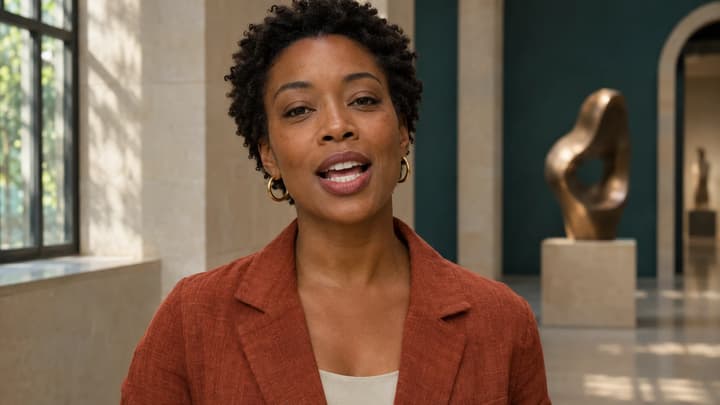
Change the dialogue in an existing video with your own voice recording. Upload a clip and replacement speech to generate new mouth movements with Lip Sync AI.

Make a portrait speak with your uploaded voice recording. Choose an audio-compatible model and direct the expression, framing and length of one short talking video.
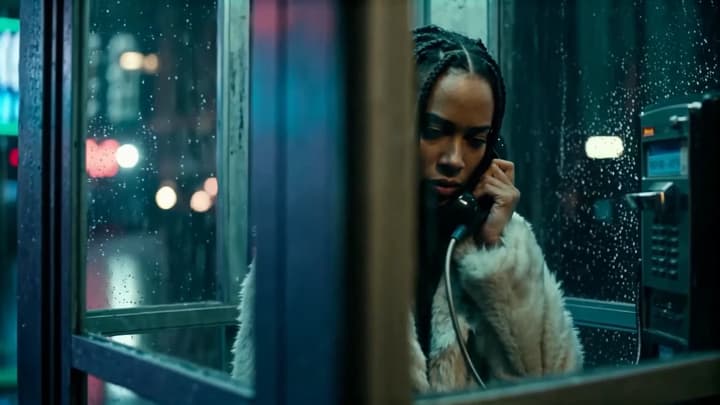
Turn an audio clip and reference images into a short AI video. Describe one scene, choose an audio-compatible model, and generate a new shot.
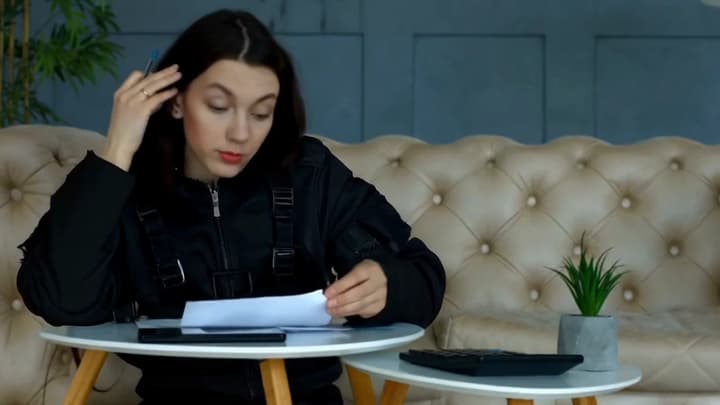
Edit a video with text. Upload your clip, describe a change to clothing, objects, background or lighting, and add reference images when you need a specific look.