How to Make a Shopify Product Video from a Product Link

Use the right product variant, choose consistent photos, direct a short shot and add the accepted video to your Shopify product media.

LumiYing TeamUpdated

Start with the product shoppers will receive

A Shopify listing may show several colors, sizes, accessories and packaging options in one gallery. Before generating a product video, choose the exact version you plan to show. A clip that changes a buckle, cap or color can misrepresent the item even when its opening frame looks convincing.

Use the public product page as your starting point. Shopify URL to Video reads the available text and images, lets you review the source, and generates one short video with the model you choose. Keep a clear whole-product photo and add another angle when it reveals a detail the shot needs.

From product link to Shopify media

  1. Step 01 Copy the public product-detail URL

    Open the item in your storefront and select the intended variant. Copy that product page, including its variant query if present. Use the page shoppers can open on your custom domain or myshopify.com domain. A Shopify admin link, collection page or password screen does not identify an accessible product for the importer.

  2. Step 02 Check the imported variant and gallery

    Paste the link into Shopify URL to Video. It reads the page automatically. Expand the source details to confirm the name and relevant facts. Check every selected image for the same color, hardware and bundle contents. Variant links can still return a gallery containing several versions, so review the photos before continuing.

  3. Step 03 Describe one visible action

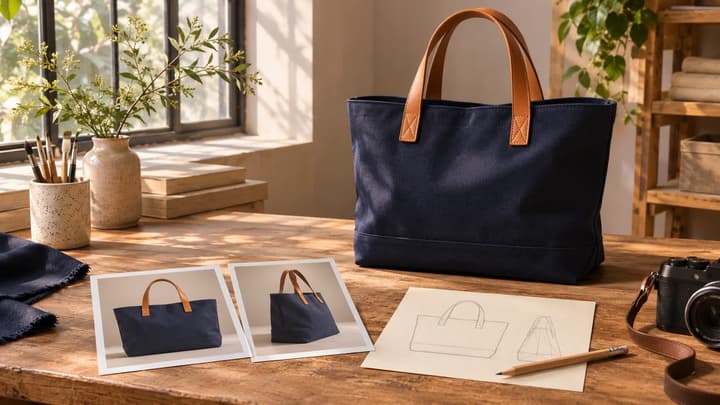
    For a canvas bag, try a slow camera slide from the full bag toward the handle stitching. Keep the bag stationary and ask to preserve its navy fabric, tan handles and fastening. Add the setting only when it helps show scale or use. Leave the direction blank to begin with the tool’s restrained camera movement.

  4. Step 04 Choose a model and supported settings

    Select the model, duration and aspect ratio for the placement you need. A vertical frame can suit a social post, while a wider frame can leave room around a product on its page. Photo limits change with the model. Check the quote, then click Generate. Selected photos are downloaded and validated during submission.

  5. Step 05 Inspect the whole clip

    Play the result, then pause near the beginning, middle and end. Compare the item’s silhouette, color, label and fittings with the listing photos. Watch fingers, straps and contact with surfaces during movement. Use Re-edit to keep a useful setup while simplifying the action or changing a reference that caused a mismatch.

  6. Step 06 Upload the accepted file to Shopify

    Download the result. In Shopify admin, open Products, choose the item and upload the video in its Media section. Shopify accepts MP4, MOV and WebM uploads up to 10 minutes and 1 GB. Preview the product page on desktop and mobile to check playback and cropping. Video belongs in product media and cannot be assigned directly as variant media.

Choose photos for the shot you want

Match the material to the shot

Whole-product reveal
One clean front or three-quarter view
Silhouette, color and scale stay consistent.
Material detail
A sharp close-up plus the whole product
Texture and stitching remain attached to the right surface.
Lifestyle context
A clear product with room around its edges
Hands, contact shadows and setting scale make sense.
New variant
Photos of that exact color and configuration
The result never switches to another version.

Product shots for your store

Watch a shot, then use its prompt with your own Shopify product link and selected photos.

A pineapple drink

Let the can, condensation and lighting carry the shot.

Use this prompt
Prompt

A close product shot of the selected pineapple drink can on a cool surface. Condensation catches the light as the camera moves gently closer. Keep the packaging, color and proportions consistent. No extra claims or captions.


Video example

Fix the input that caused the mismatch

Link will not import
Unsupported URL, removed item or blocked region
Use a full public product-detail URL from a supported platform and confirm the page opens.
Photos do not match
The listing includes several variants
Choose one version and remove facts that describe another.
Photo rejected for this model
Size, dimensions or count exceed its limits
Choose a compatible listing photo or model and confirm the selection again.
Changed label or shape
Large rotation or difficult fine detail
Try a small camera slide and inspect all frames again.
Too much happens
The brief asks for several actions in a short duration
Remove an action or choose a longer supported duration.
Product link questions

Before the next take

Does the tool connect to my Shopify admin?

The workflow starts from your public storefront URL. Download the accepted clip and upload it in Shopify yourself. Keep the imported information limited to the product and shot you need.

Can I reuse a result for another variant?

Review it against that variant’s actual photos first. A different color, handle, fitting or bundle may need its own reference set and generation. Keep each published video consistent with the product it represents.

Make your Shopify product video