URL to Video

Model

Link

0 / 7,100

Duration
Aspect ratio

URL to Video

Turn a public product page, article or website link into a short AI video. Review the extracted text and images, then choose your model and duration.

Product shots to try

Watch a shot, then use its direction with your own product link and photos.

A charging desk

Keep the camera near the charging surface so the product remains readable.

Use this shot direction
Shot direction

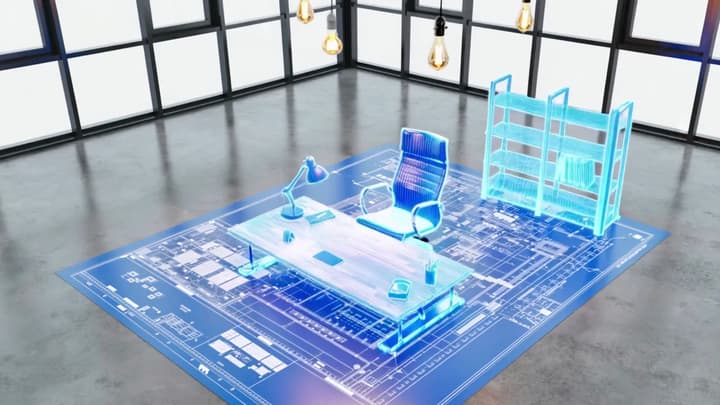
Show the selected charging station on a tidy desk with the compatible devices pictured in the references. Slowly slide the camera past its charging surface. Keep its shape and ports consistent. No titles or speech.
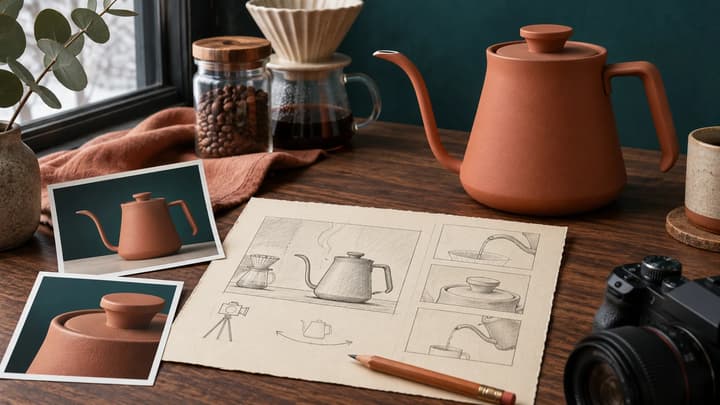

Video example

Give a web page a moving scene

Use a product page, article or public website as your source. Review its text and images, then direct one short video.

Everyday use

Put the product in context

Create a breakfast-table shot from a travel cup listing. Choose one variant and describe a small camera move.

Materials

Bring a detail closer

Use a clear shoe photo to direct a close-up of the weave, stitching or sole. Check the result against the actual item.

Light

Reveal shape and finish

Give a bottle a gentle light change or camera slide. Keep the pump, label position and proportions recognizable.

Setting

Plan a social product shot

Place a bag in a cafe scene and choose a supported vertical frame. Review the strap, fastenings and scale throughout.

How to turn a URL into a video

01

Paste a public link

The page text and available images are prepared automatically.

02

Review your source

Edit the source details and choose images if needed. Add a direction to focus the scene.

03

Generate and review

Check the credit quote, generate, then compare the clip with your source.

URL to Video questions

Which links can I use?

Paste a public HTTPS product page, article, blog post, business page or app listing. Dedicated readers handle Amazon.com, Etsy and TikTok Shop US products, while other pages use a general web reader. Access restrictions and unavailable pages can prevent extraction.

Can I edit the extracted information?

Yes. Open the source-details row to edit the title and text before generating. Keep only the information relevant to your scene.

Do I need a reference image?

Images are optional for pages read by the general web reader. When images are available, the first is selected automatically and you can change the selection. Dedicated marketplace product imports require a product photo.

How long is the video?

Choose a duration supported by your model. Each generation creates one short video. Continue editing or extending the result with the available actions.

Will every label and detail stay exact?

Generative video can change lettering, fine geometry or reflections. Compare the full clip with the source photos and keep only a result that represents your product accurately.

Does reading a link start generation?

No. Reading a link prepares the page text and images. Review them and the settings, then click Generate to submit a video generation at the displayed credit cost.

Turn a link into your next scene