Audio to Video AI

Model

Audio clip

Visual references

0 / 9,100

Duration
Aspect ratio

Audio to Video AI

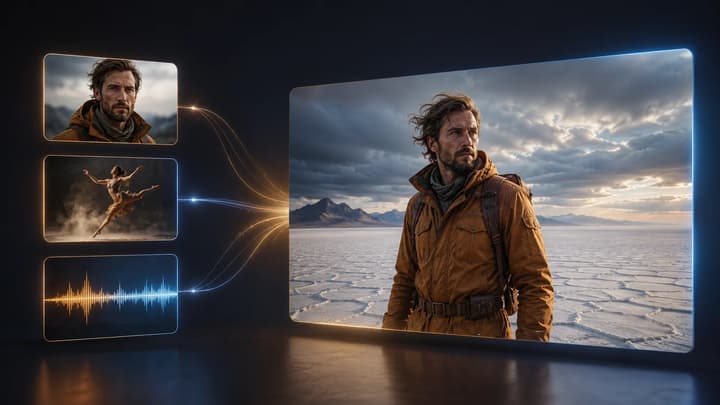
Turn an audio clip and reference images into a short AI video. Describe one scene, choose an audio-compatible model, and generate a new shot.

Audio-to-video examples

Listen to the audio, watch the scene, then load its references and a suggested prompt to try a new version.

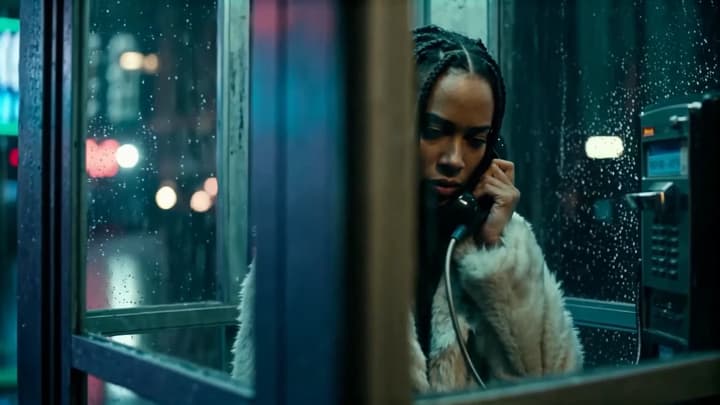
A late-night call

Listen to the voice and rain while watching the caller’s expression.

Load this example
Visual reference
Audio reference
Video example
Suggested prompt

Use image 1 for the woman, pale coat and rain-covered phone booth. In one medium shot, show her speaking into the receiver with a restrained expression, guided by the uploaded voice and rain. Keep the neon lighting and use a gentle camera move.
Give sound a scene

Start with a sound you can describe and a picture that gives it somewhere to happen.

Atmosphere

Build around environmental sound

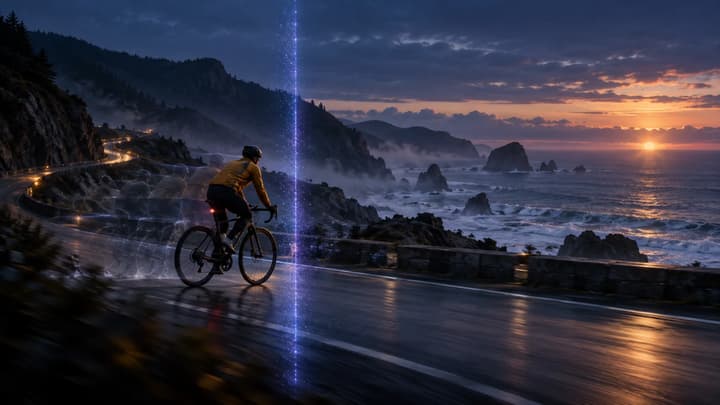
Use rain, wind or a passing vehicle to guide movement within a clear setting.

Physical action

Show what makes the sound

Give a tap, scrape or impact a visible source. Keep hands and objects readable.

Voice

Direct a short performance

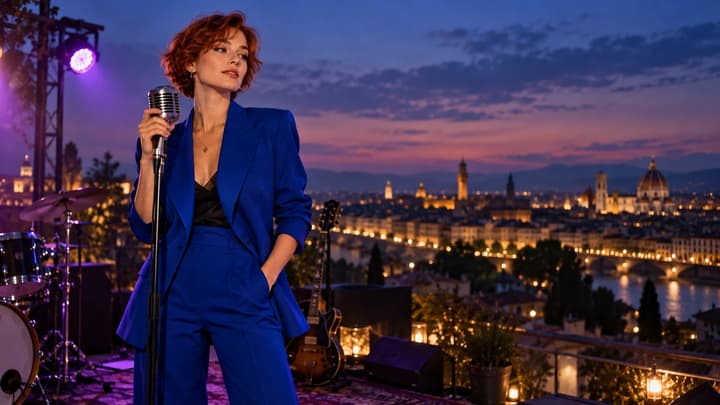
Pair a short voice excerpt with a character and a simple expression or gesture.

Rhythm

Move with the sound

Describe one repeated action or gentle motion that suits the recording's pace.

How to turn audio into an AI video

01

Add the audio and images

Choose a model, upload one MP3 or WAV clip and add visual references within the limits shown for that model.

02

Describe one shot

Name the visible action and camera movement, then choose duration and aspect ratio.

03

Generate and review

Check the credits, generate, and play the result with sound before downloading or re-editing.

Frequently asked questions

What does the audio control?

The model uses the recording as a reference for sound, mood, rhythm and action. Your images and prompt guide the visible scene.

Which files can I upload?

Upload one MP3 or WAV excerpt and JPEG, PNG or WebP images. Follow the selected model's file-size and audio-duration limits.

How many images can I use?

At least one image is required. Add references within the selected model’s displayed image and total media limits, and explain the role of each.

Will the original recording stay exactly the same?

The model may change the sound or timing. If you need the recording unchanged, place your original audio under the downloaded clip in a video editor.

Does it synchronize every spoken word?

This workflow uses audio as a generation reference. Review mouth movement separately when making a speaking character. Word-by-word lip synchronization requires a dedicated workflow.

How long is the video and what does it cost?

Choose from the durations available for your model. The form shows its output settings and credit cost before generation. Loading an example prepares the inputs.