Frame to Video AI

Model

First frame

Last frame(Optional)

0 / 9,100

Duration
Aspect ratio

Frame to Video AI

Create frame to video animations with AI. Upload a first frame, add an optional last frame, and choose your prompt, model, duration and aspect ratio.

Frame to Video AI

Watch the movement between two frames

Compare these public transition demos with their paired inputs. The prompts below are suggested briefs to try with your selected model.

A coastal camera move

5s · 16:9. Follow the coast toward the final city view.

Load both frames and prompt
First frame
First frame
Last frame
Transition demo
Suggested prompt

Move the aerial camera smoothly along the coast from the first viewpoint to the final viewpoint. Preserve the shoreline, buildings and mountain silhouette. Keep the horizon level and the evening light consistent. One continuous move without cuts.
What is Frame to Video?

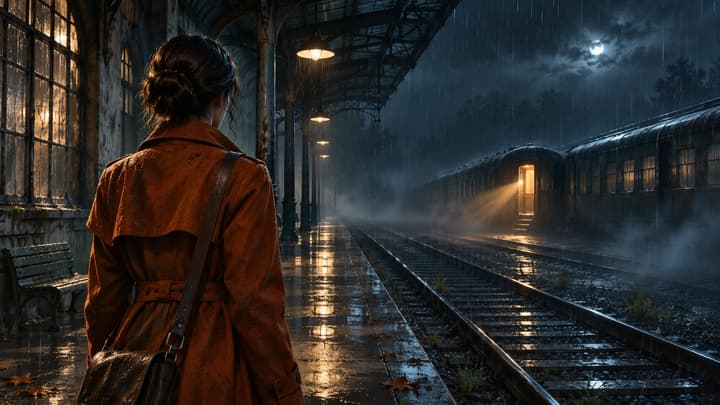
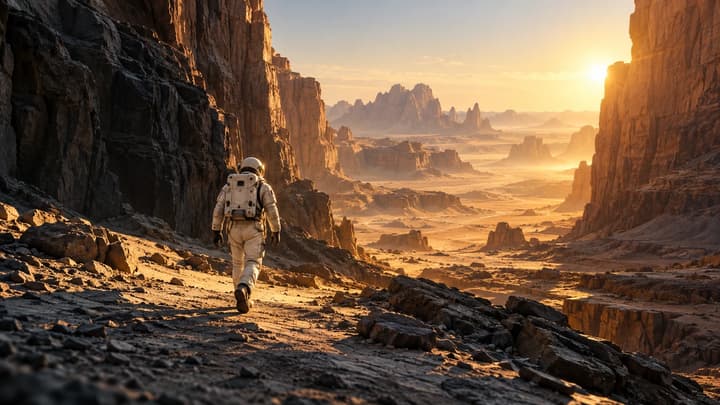
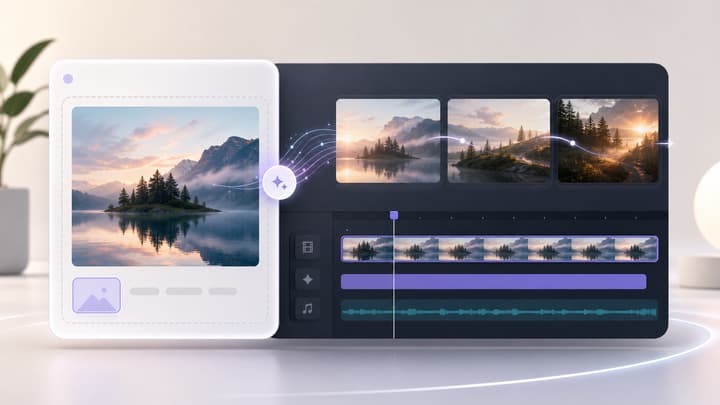
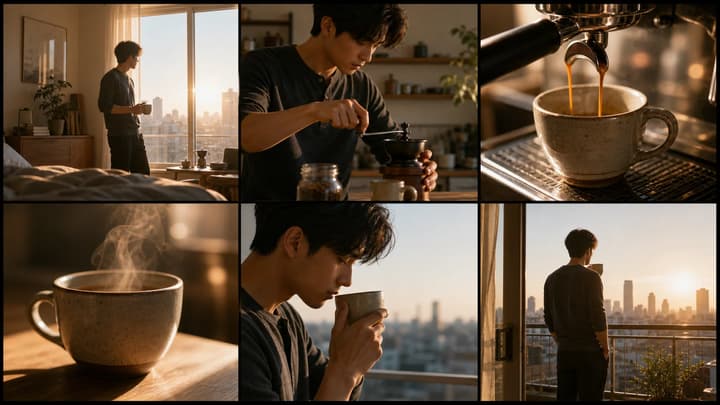
Frame to video AI animates a starting image. Add an optional last frame to guide the ending composition. These concept illustrations show four ways to plan a transition between two frames.

Camera movement

Connect two viewpoints

Choose two views of the same place and describe the camera path. Small changes in angle or distance give the model less unseen space to invent.

Character action

Give an action a destination

Use the same character at the start and end of a movement. Keep clothing and setting consistent, then describe the action that joins the poses.

Transformation

Show an intentional change

Use a bud and an open flower, or two stages of a designed transformation. Say what should change and what should remain stable.

Loops

Return to the opening composition

Use the same image in both slots and ask for motion that returns to its starting state. Inspect the playback seam; matching endpoints alone cannot guarantee a seamless loop.

From frames to a moving shot

01

Upload a first frame

Upload a first frame. Add a last frame if you want to guide the ending.

02

Describe the motion

Describe the motion, then choose a model, duration and aspect ratio.

03

Generate and review

Generate, check the opening, motion and ending, then download.

Control the endpoints, then simplify the move

Give each image a clear role

The first image guides the opening. An optional last frame guides the ending. When both are supplied, they have distinct roles rather than acting as unordered references.

Describe one movement

A camera orbit, a step forward or a lighting change gives the model a clear task. Competing actions make the path less predictable.

Review the middle too

A convincing start and finish can hide distorted intermediate frames. Check faces, hands, wheels and straight edges before using the clip.

Frequently asked questions

Is a last frame required?

No. Only the first frame is required. Leave Last frame empty to animate one image, or add a last frame to guide the ending composition.

Which models support this workflow?

The selector lists integrated models with native first and last frame inputs. Available durations and image limits follow your selected model.

Will the output match both frames exactly?

The frames guide the opening and ending composition. Generative models can alter details or miss a precise endpoint, so compare the whole result with your inputs.

Can I use unrelated images?

Yes, for an intentional transformation. Describe that change explicitly. For natural motion, prefer the same subject and setting with a plausible difference in pose or viewpoint.

Can I make a loop?

Use the same image in both slots and describe motion returning to its starting state. Check the seam in an editor; identical input images do not ensure matching motion at the cut.

Does loading an example spend credits?

No. It fills the frames, prompt and suggested settings. Review the current quote before submitting a generation.

From frames to a moving shot