

Warm portrait light
Relight a photoRight + Sunrise light: Look at the warm side of the face, the nose shadow and eye highlights. Keep the same facial features, hair and sweater; warmer light should not smooth or redesign the person.
Change the direction and mood of light in a photo while keeping the subject, composition, text, and product details under review.

Set the key-light direction with the sphere or its shortcuts. This selects the next generation’s setting; the uploaded photo is not a live lighting preview.
Choose one of nine lighting treatments. The cards select a style preset; only your uploaded photo is used as an image reference.
Compare identity, composition, text, materials, shadows, reflections, and highlights before using the result.
Load an original photo with its suggested direction and style, then generate your own comparison.
Right + Sunrise light: Look at the warm side of the face, the nose shadow and eye highlights. Keep the same facial features, hair and sweater; warmer light should not smooth or redesign the person.
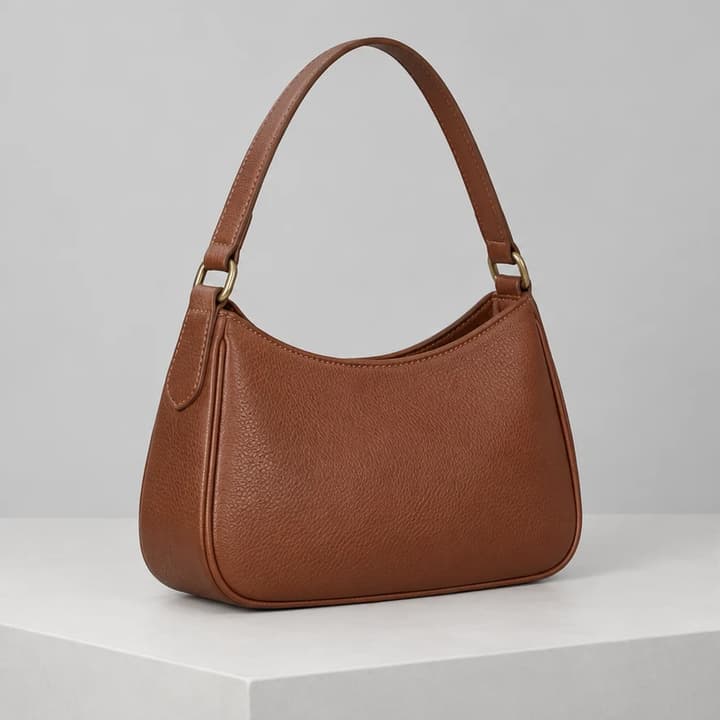
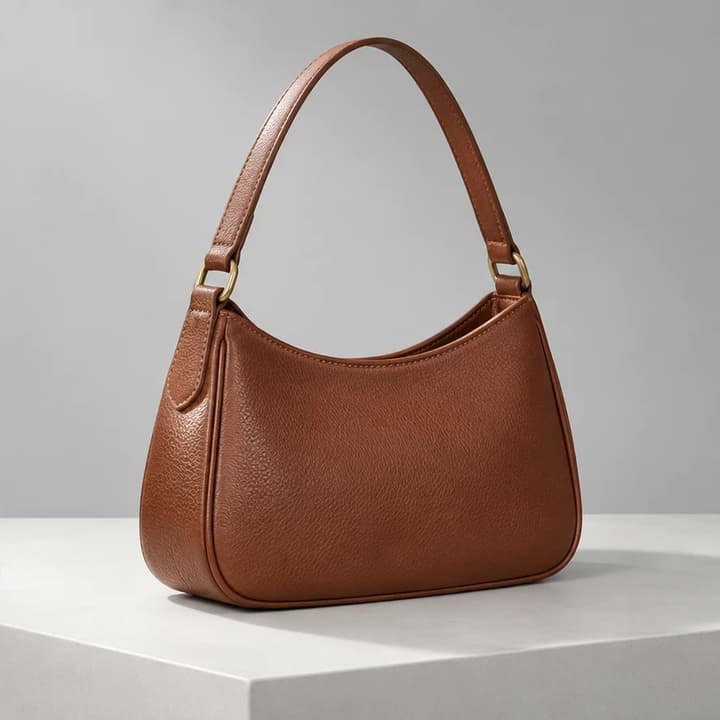
Top Left + Natural light: Use a neutral angled light to reveal leather grain and hardware. Compare the handle, seams and bag silhouette; highlights and the pedestal shadow should agree with one light direction.
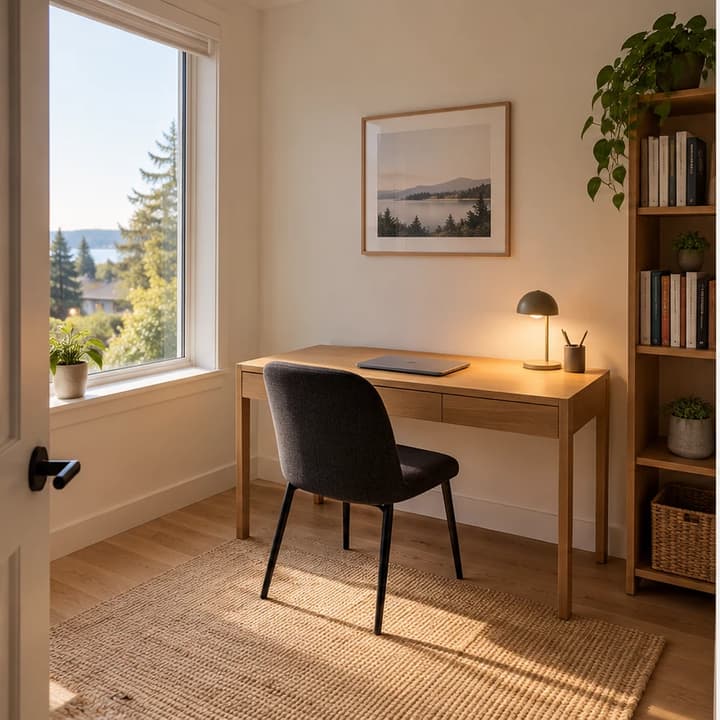
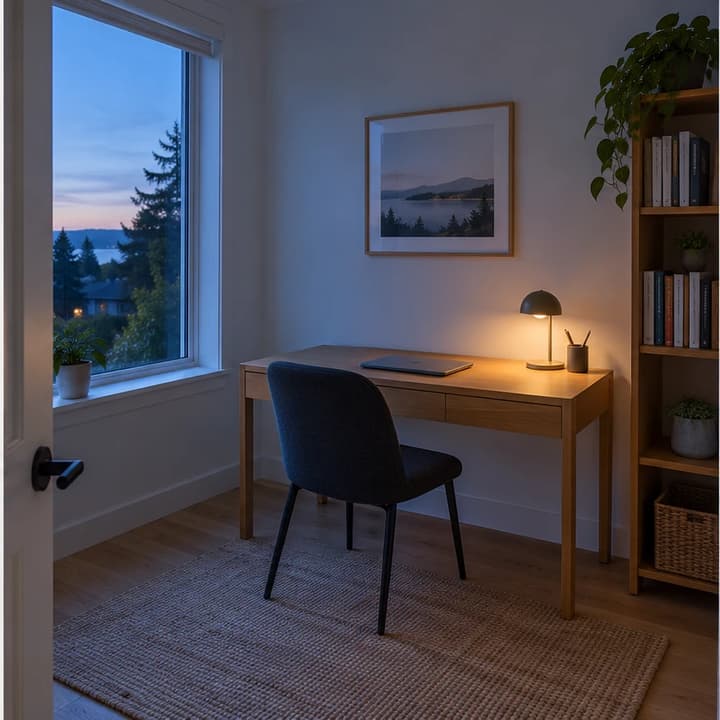
Left + Blue hour: Keep the light on the window side and compare a cooler atmosphere with the existing warm lamp. Check the desk, chair, bookcase and window geometry before judging the mood.
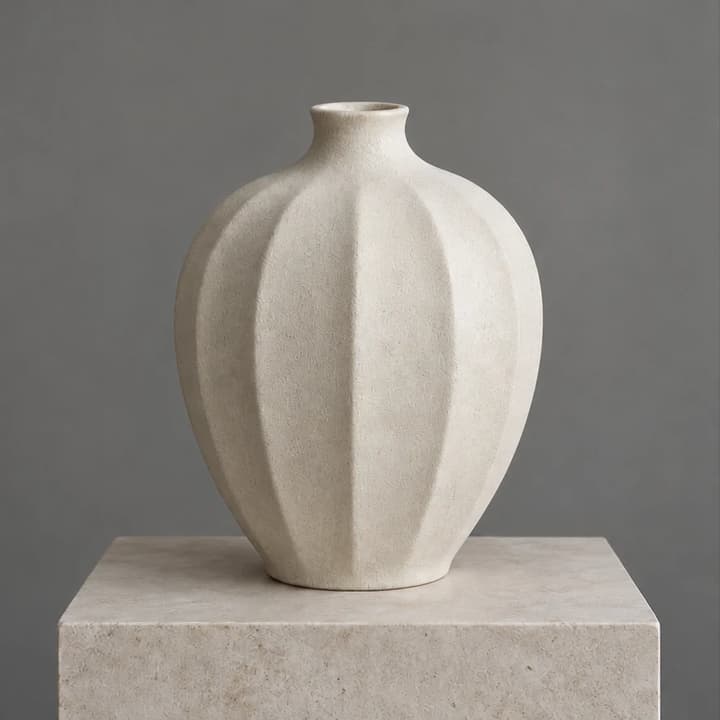
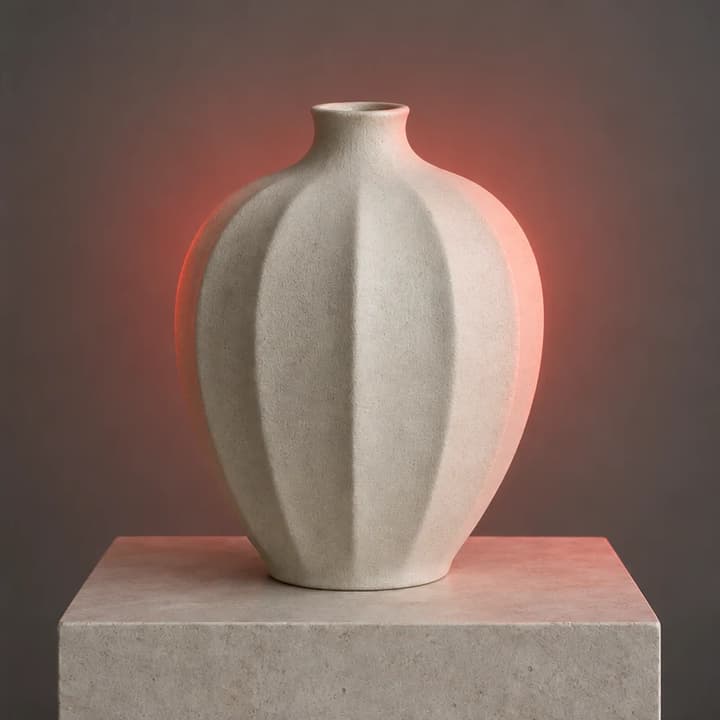
Rear + Cinematic red: Compare colored backlight around the vase with its neutral front detail. Inspect the opening, flutes and stone plinth; red illumination should not become a painted outline or change the ceramic shape.
Use a JPEG, PNG, or WebP with the subject and important details visible.
Drag the sphere or choose a direction preset, then select one of the controlled lighting styles.
Compare the result with the source, especially shadows, reflections, highlights, faces, materials, text, and logos.
Confirm that identity, pose, product structure, camera angle, crop, and background remain consistent.
Look for one coherent light source, contact shadows, reflective surfaces, and highlights that match the selected direction.
Zoom in on labels, signs, fabric, skin, metal, and glass. Regenerate if lettering warps or material response becomes implausible.
It changes the apparent direction, shadows, highlights and color of light in an existing photo. Preserving the subject, framing and background is the goal; review the generated image against the original.
Upload one JPEG, PNG or WebP up to 30 MB. Choose a sharp photo with readable faces, edges and labels. This preset accepts one source photo, not multiple lighting reference images.
No. The sphere selects a supported light direction for the next generation. Its source thumbnail and lamp indicator are controls, not a live relit preview. Click Generate to create a result.
No. A card selects a lighting preset. Only your uploaded source photo is sent as the image reference; choosing a card does not copy its person or scene.
This tool chooses output dimensions automatically and has no ratio or resolution control. Check the final crop and pixels before using the image; preserving the source framing is not a guarantee of identical dimensions.
Changing the source, direction or style does not spend credits. Review the displayed amount before clicking Generate. Each request produces one image and uses the quoted credits.
They can change in generated edits. Compare identity, geometry, labels and materials at full size. Reject versions that alter important details, even if the lighting looks better.
Keep the same original source and change one setting at a time. The Edit action on a result opens the general generator with that output; it is a separate edit, rather than a comparison from the original.
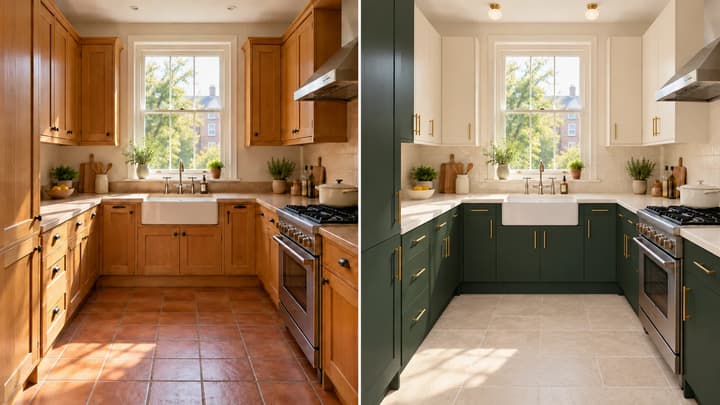
Redesign your kitchen from a photo. Coordinate cabinets, counters, walls, floors and lighting while keeping the room structure and major appliances in place.
Relight a photo with AI. Adjust light direction, shadows, and lighting style while checking that the subject and composition stay consistent.
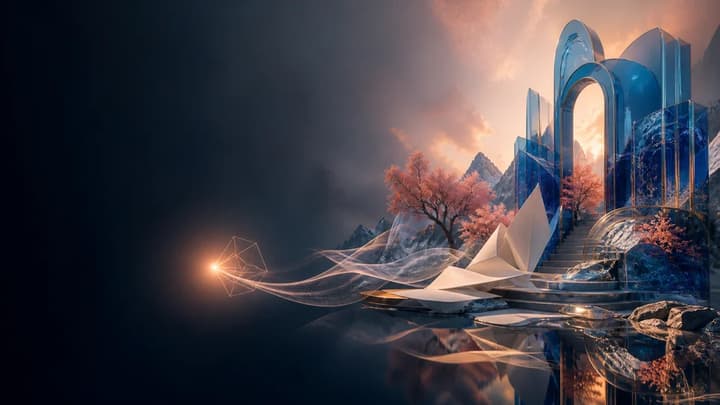
Create original images from a text prompt or optional reference image. Adjust the aspect ratio and resolution to bring your creative vision to life.
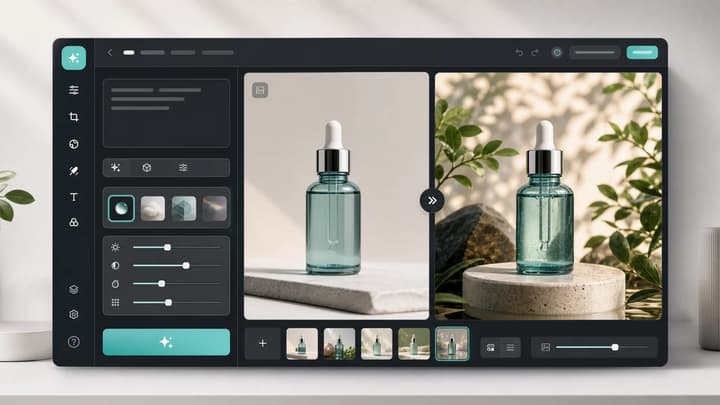
Use the image editor for changes beyond lighting.
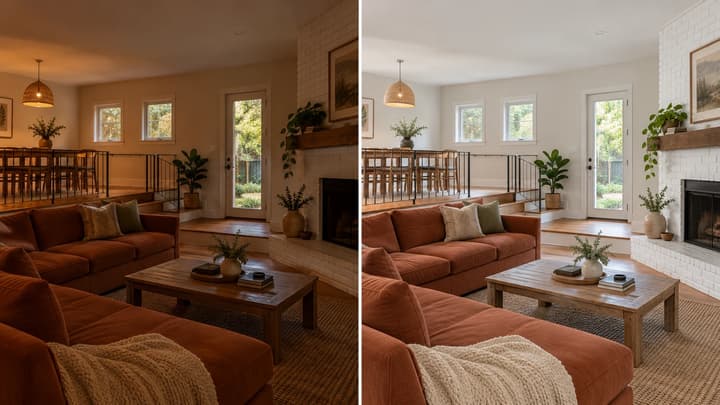
Edit a property photo with AI. Balance exposure and color or request small clutter removal while keeping the original layout, furnishings and finishes.

Extend a photo beyond its borders. Choose an output ratio and describe the space you need for ads, social posts or layouts, then review the AI-expanded image.
Review credits and plans before generating.