How to Make a Movie Trailer with AI

To make a movie trailer with AI, decide what question should draw viewers into the story, plan a few visual beats, generate short clips, and assemble the strongest moments in an editor. Add readable titles and a continuous soundtrack after the cut works. A short teaser can fit into one generation; a longer trailer needs shot selection and editing.

LumiYing TeamUpdated

Promise a story without summarizing it

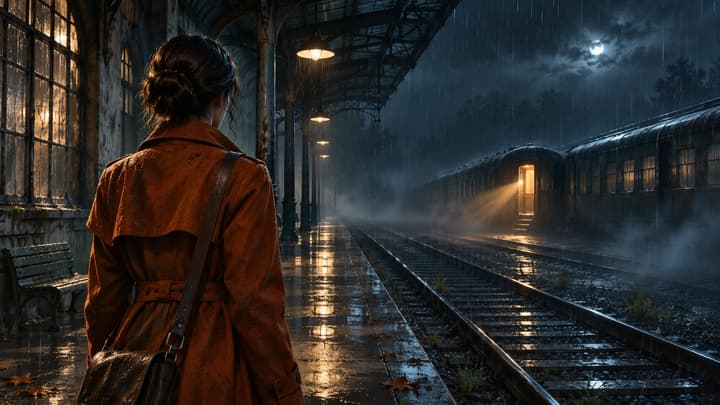
For this walkthrough, an investigator receives a message from a train that stopped running years ago. The trailer promises a mystery: who is waiting inside? It does not explain the train's history or reveal the passenger. That choice tells you which images belong in the cut.

Prepare a one-sentence premise, a genre, a target length and the destination screen. If you already have characters or locations, collect a few clear reference images with compatible lighting. Avoid mixing different outfits or several faces without explaining which image defines which person.

Build the trailer from brief to finished cut

  1. Step 1 Choose the hook

    Write a sentence with a person, a disruption and a question. For the train mystery: an investigator follows a message to an abandoned station, but a carriage is already lit. Replace vague requests such as “epic and cinematic” with this visible event.

  2. Step 2 Map the beats and reserve the ending

    Plan an opening clue, an escalation and a final unresolved image. Use the 30-second cut plan below as an editing target, not a promise that one model call will time every shot exactly. Leave space for a title and breathing room.

  3. Step 3 Prepare references and a shot prompt

    Use one clear image for the lead and another for the station if you need continuity. Say “image 1 defines the investigator; image 2 defines the platform.” Add the action, camera move and sound. Avoid requesting a new location, several actions and long dialogue within one short shot.

  4. Step 4 Generate manageable clips

    In the tool, fill Prompt and optionally add reference images within the selected model’s limit. Choose a supported duration and frame, such as 16:9 for landscape or 9:16 for vertical. Start with a 10-second draft and a small number of beats. Check the quote. Loading a prompt only fills the form.

  5. Step 5 Assemble the strongest moments

    Download useful takes and import them into your editor. Trim the quiet lead-in, cut on an action or sound cue, and remove shots that repeat information. For the example, use three generated clips and trim them to the cut plan. Add the title as an editable text layer so spelling and hold time are under your control.

  6. Step 6 Finish sound and inspect the export

    Native audio can give each clip atmosphere, but separately generated music may jump at the cuts. Keep useful ambience, lower it under dialogue and use one continuous licensed score if needed. Watch once muted for visual clarity and once with sound for balance. Export at the project ratio, then check the actual file on a phone.

A practical cut plan and settings

The timing below describes the final edit. Generate slightly longer source clips where possible so you can choose a clean in and out point.

Worked example: a 30-second train mystery

0–6s
A deserted platform; one carriage light turns on.
Establish the location and the impossible clue. Keep the opening legible without narration.
6–15s
The investigator approaches; a reflection moves inside the carriage.
Connect the lead to the clue. Keep coat, face and carriage position consistent.
15–25s
A hand reaches the door; a shadow stops on the other side.
Raise the stakes. End before the door reveals who is inside.
25–30s
Cut to black, then the title and one short release line.
Build these text layers in the editor. Leave enough time to read; do not invent a release date.

Choose settings for the job

Length
10-second drafts; model-native duration
Use fewer beats for shorter clips. For a longer cut, generate separate shots instead of compressing a whole screenplay.
Frame
16:9 or 9:16
Choose before generation. Keep the same ratio across the sequence; a later crop can cut off the clue or character.
References
None, or a few clear images
Text alone works for exploring. Reuse the same character reference when identity matters and describe its role.
Sound and titles
Native sound; titles added in the editor
Ask for ambience only if you plan to add one score across several clips. Add exact text in post for reliable spelling.

An editable prompt for the opening

Use this practice brief for a 10-second teaser. Keep the same premise when refining; change one weak element at a time.

An editable prompt for the opening

A quiet mystery teaser at an abandoned railway station at night. An adult investigator in a rust-orange coat notices a warm light inside a stationary train. Begin with a wide view of the empty wet platform, then cut closer as she takes one step toward the carriage. End on a silhouette briefly crossing the lit window, without revealing its face. Restrained camera movement, realistic rain and reflections, consistent coat and train geometry. Soft rain, a distant metal creak, no music or dialogue. No captions or title cards.

Use fewer beats for shorter clips. For a longer cut, generate separate shots instead of compressing a whole screenplay.

Try this direction

Trailer examples and prompt ideas

Watch how these demos establish a world and raise a question. The suggested prompts offer a starting direction for your own story.

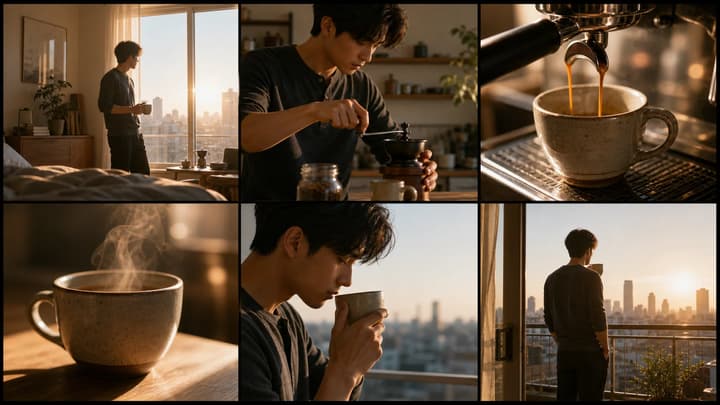
A signal from the deep

30s demo · 16:9. The quiet harbor gives the disturbance a setting; the ending leaves the threat unexplained.

Story direction

A coastal town hears something beneath its empty harbor. Build unease before showing a single disturbing clue.

Trailer demo
Suggested prompt

A restrained coastal mystery teaser. Begin with a slow aerial over an empty harbor in gray fog. Cut to an adult dock worker who stops as a low pulse comes from beneath the water. End on ripples moving against the tide, leaving their source unseen. Natural proportions, muted colors, clean cuts, quiet wind and a low underwater rumble. No dialogue, title cards or text.
Try this direction

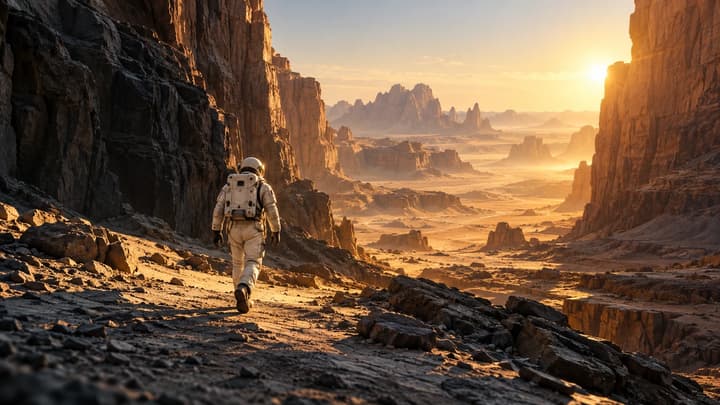
One last transmission

15s demo · 16:9. A vast landscape establishes isolation, then a closer view makes the robot's task personal. Watch the shift in shot scale.

Story direction

A lone robot has one chance to send a signal from an abandoned world. Show the effort and leave the reply unknown.

Trailer demo
Suggested prompt

A cinematic science-fiction teaser about a lone weathered robot on an abandoned planet. Open on the robot crossing a windswept ridge under an eclipse. Cut closer as it reaches a broken antenna and an amber light begins to blink. End before the signal receives an answer. Consistent robot design, grounded metal textures, purposeful movement, spare wind and a brief electronic pulse. No text, countdown overlay or narration.

Try this direction

Check the result before adding more shots

A beautiful clip with no hook
Replace mood adjectives with one visible disruption, such as a light switching on in an empty train.
Can a new viewer describe what changed in the first few seconds?
Faces, clothes or props change at a cut
Reuse a clear reference and repeat the identity details. Reduce the cast or generate the difficult shot separately.
Compare the same face, coat and prop on both sides of the cut.
The model rushes or blends scenes
Reduce the number of beats. Request clean cuts, or generate each location as a separate clip.
Can you read each action, and do objects remain stable during the transition?
The trailer reveals everything or ends abruptly
Remove the explanation. Hold one unresolved image and create a deliberate title beat in the editor.
Does the final question remain open, and is the title readable with sound off?
Questions about AI trailers

Questions about AI trailers

Can I generate from text alone?

Yes. Prompt is required and reference images are optional. Add images within the selected model’s limit to guide characters, locations or visual style.

Does this create a complete two-minute trailer?

Each generation returns one clip at the selected model's duration. For a longer trailer, generate several shots, download them and assemble the cut, titles and soundtrack in a video editor.

Which models and audio are supported?

The selector lists integrated models that accept text and optional image references. Available durations depend on the selected model. Native sound is enabled; describe ambience, dialogue or music in the prompt when needed.

Can I upload a movie to extract its trailer?

This tool creates new footage from text and optional images. It does not analyze an uploaded movie or automatically select existing highlights.

Does loading a prompt spend credits?

No. Example buttons fill an editable prompt and settings. Generation starts only after you submit it with the displayed credit cost.

Make your first trailer clip