
How to Change Clothes Color in a Photo with AI

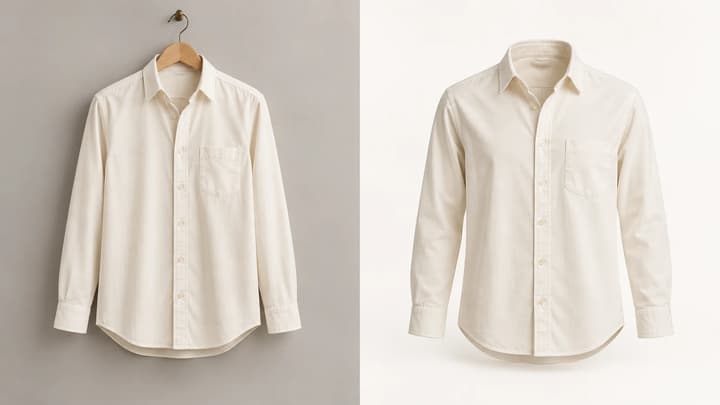
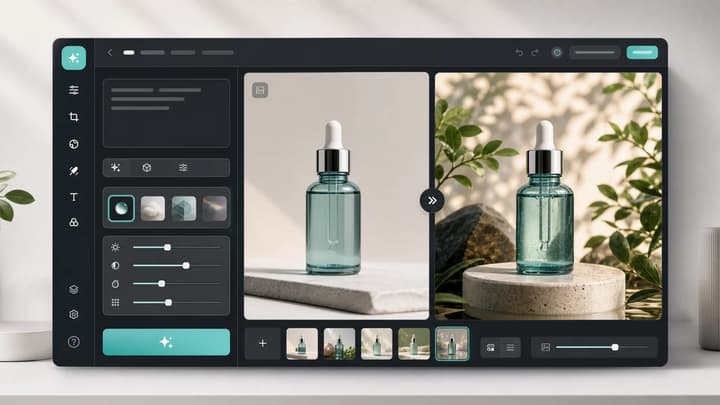
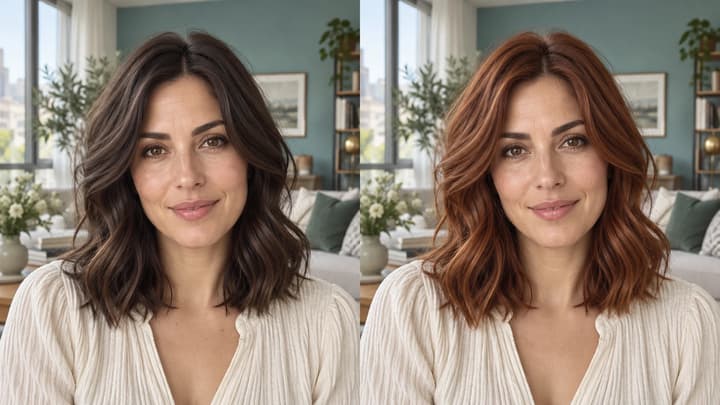
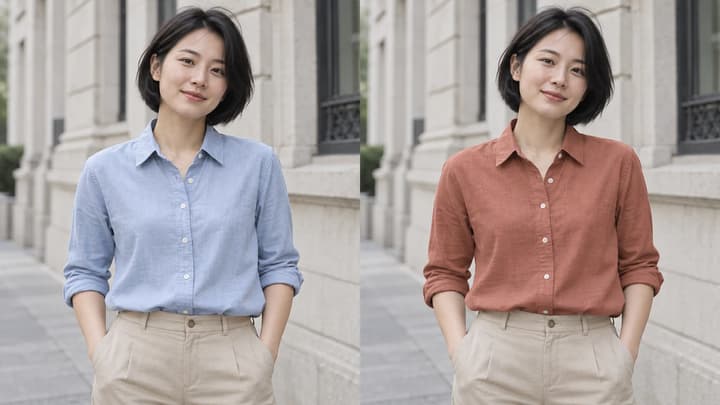
Name the garment to recolor, then choose a color, enter HEX or upload a reference. Use the examples below to check fabric detail and keep other clothing unchanged.

LumiYing TeamUpdated

How to Change Clothes Color in a Photo with AI

  1. Step 1. Start with a clear garment

    Show the whole garment in even light, with seams and texture in focus. For layered outfits, make the jacket and inner top easy to distinguish. On-person, flat-lay and mannequin photos all work as inputs.

  2. Step 2. Name what should change

    Write a specific target such as “only the jacket,” then name what to keep: the inner sweater, jeans, print or trim. Without a named target, the tool edits the most prominent garment.

  3. Step 3. Choose one color source

    Pick a preset color, choose a custom shade or enter a six-digit HEX code. You can also upload a color reference or describe a shade in words. For a reference with several colors, name the garment or swatch to use.

  4. Step 4. Generate, compare and refine

    Generate and compare the result with the original. Check other clothing, buttons, prints and folds before downloading. If the shade needs adjusting, use Re-edit to return to the original inputs and change one instruction.

Choose your color input

Choose your color input

Preset or custom color
Choose one of eight colors, use the color picker or enter a six-digit HEX code.
The selected color guides the edit; the original photo supplies the fabric, folds and lighting.
Uploaded reference
Upload a garment photo or color swatch, and specify the desired hue if it contains several colors.
Transfer color direction only, keeping the original fit, person and background.
Written instructions
Leave the color unselected and describe the garment and target shade in Edit instructions.
Name other garments that should remain unchanged.

Clothes color changer examples

The jacket example uses a written instruction; the shirt uses an uploaded color reference. Load either example to start from its original photo, or explore the eight preset colors below.

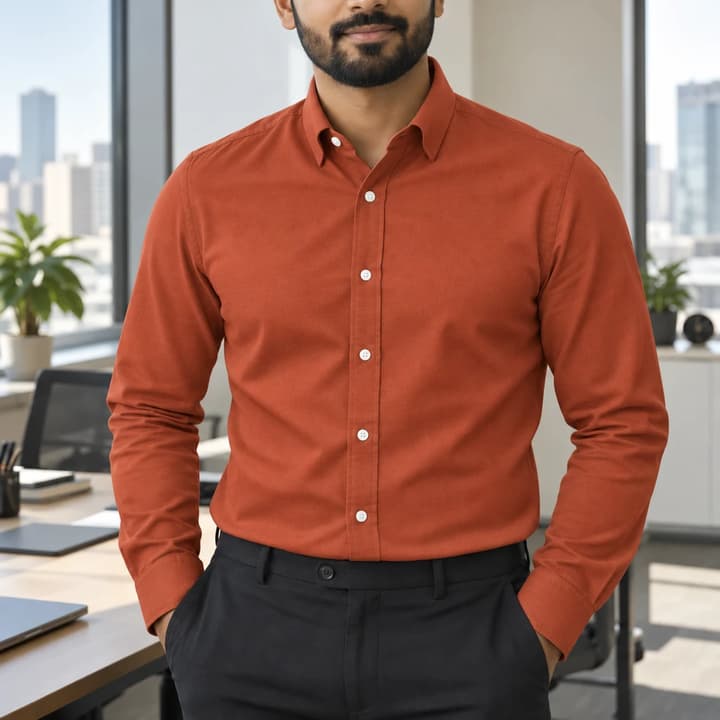
Man wearing a light gray shirt with white buttons and black trousers
Original
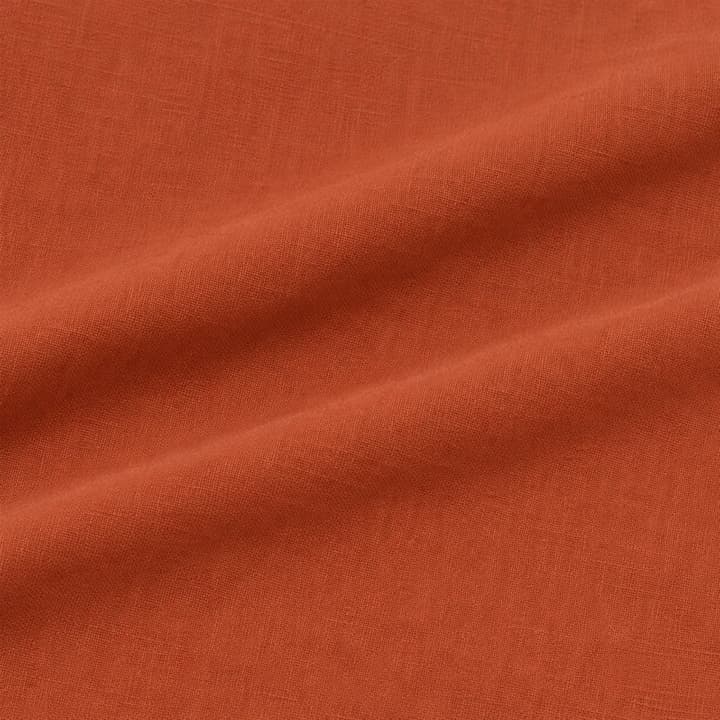
Muted terracotta cotton fabric swatch with soft folds
Color reference
The same shirt recolored terracotta with white buttons and black trousers unchanged
Color preview

Use a fabric swatch for color

Try this color

Use the terracotta swatch for the shirt's color direction. Keep the shirt's weave, white buttons and black trousers.

Edit instruction

Use image 2 only for the terracotta color of the shirt in image 1. Keep the shirt's weave, folds and white buttons, and leave the black trousers unchanged.
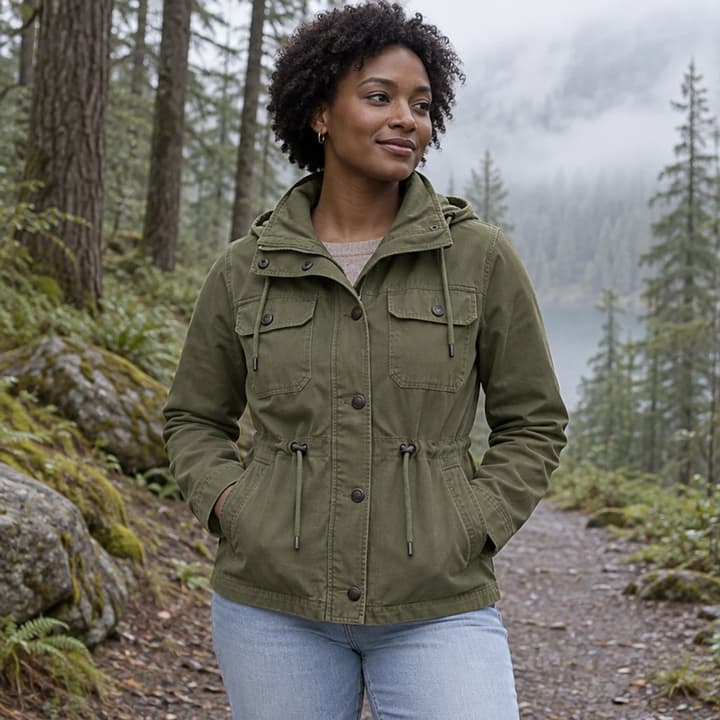
Woman wearing an olive canvas jacket over a light sweater on a forest trail
Original
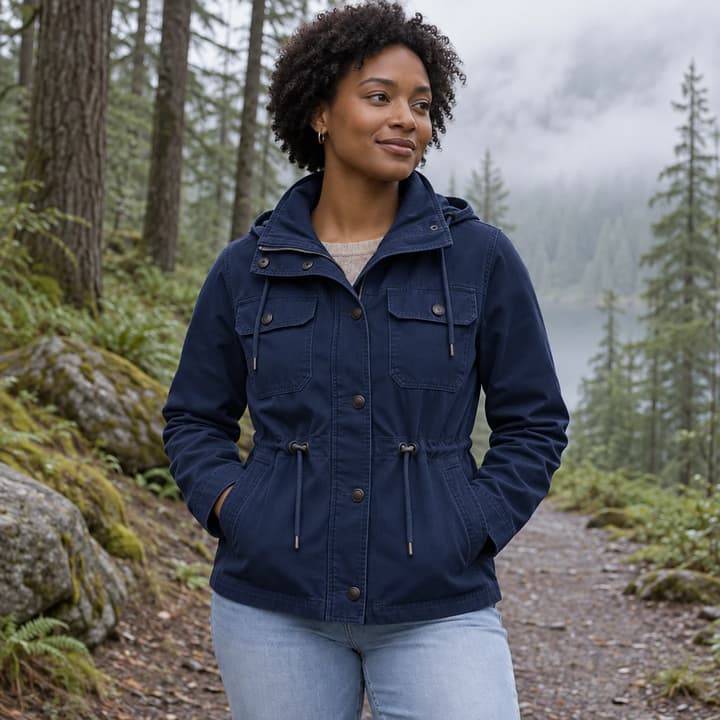
The same woman with a navy jacket, light sweater and blue jeans
Color preview

Change only the jacket

Try this color

Turn the olive jacket navy while keeping the light sweater, jeans and dark fasteners unchanged.

Edit instruction

Change only the jacket fabric to deep navy. Keep the light sweater, jeans, buttons and zipper unchanged. Preserve the canvas texture and folds.

Navy · cotton office shirt · Original
Original
Navy · cotton office shirt · Color preview
Color preview

Navy · cotton office shirt

Try this color

Pale gray cotton becomes navy while the collar, buttons and trousers stay consistent.

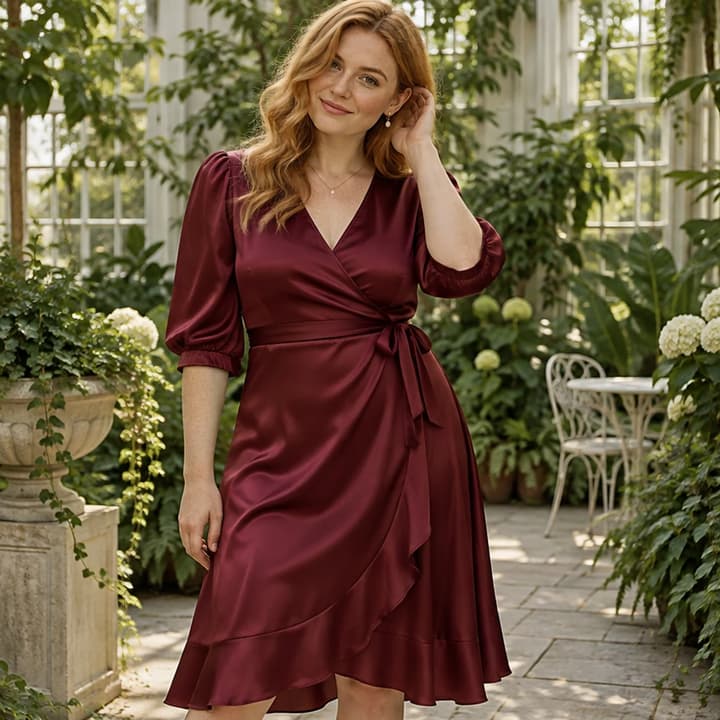
Emerald · satin wrap dress · Original
Original
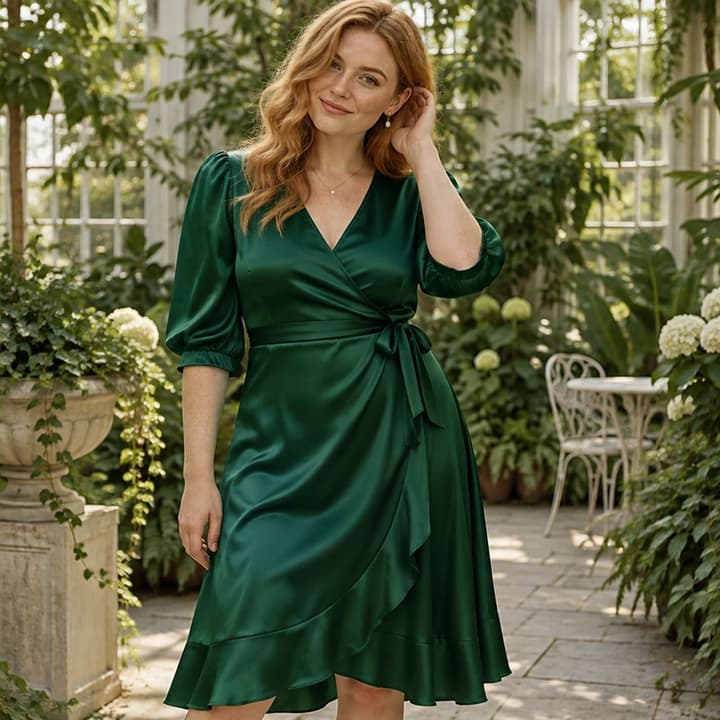
Emerald · satin wrap dress · Color preview
Color preview

Emerald · satin wrap dress

Try this color

Burgundy satin takes an emerald direction under the same conservatory light.

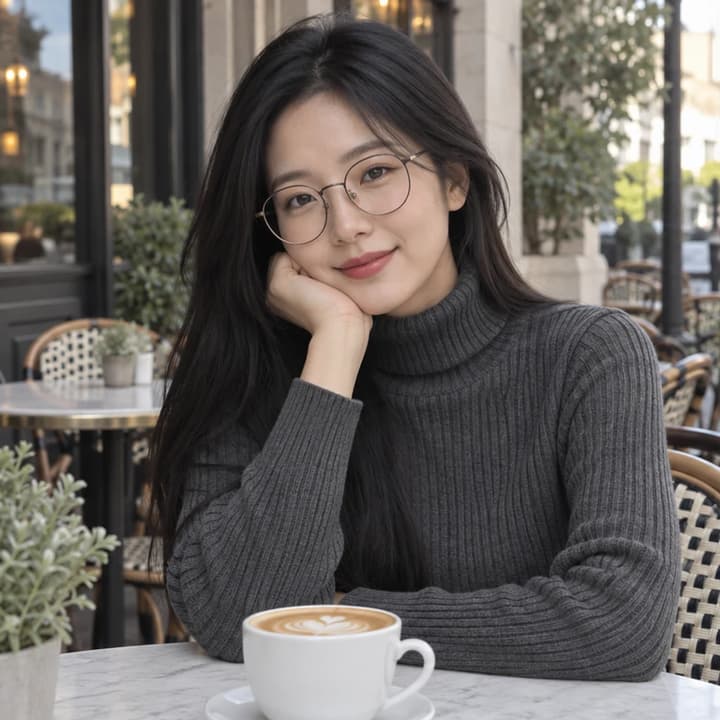
Burgundy · rib-knit sweater · Original
Original
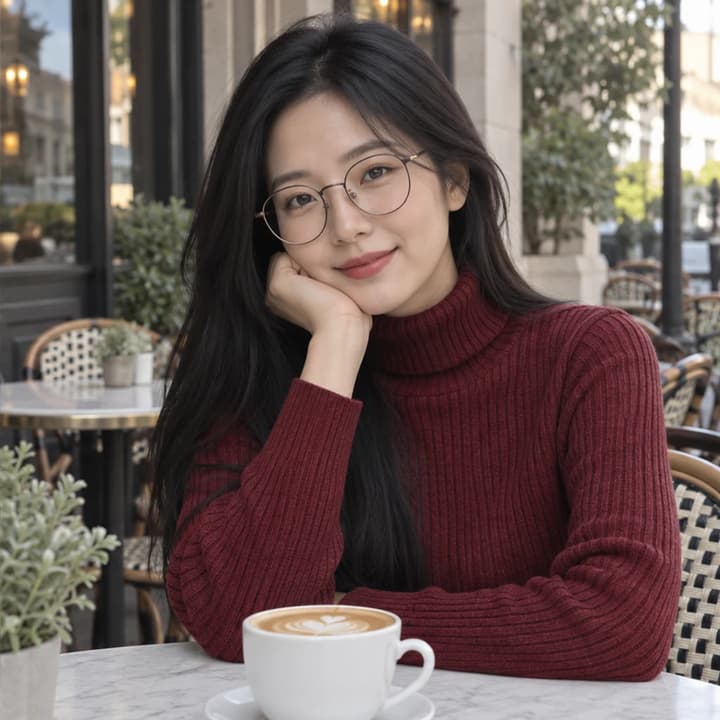
Burgundy · rib-knit sweater · Color preview
Color preview

Burgundy · rib-knit sweater

Try this color

A charcoal turtleneck changes to burgundy with the rib texture still visible.

Cream · canvas trail jacket · Original
Original
Cream · canvas trail jacket · Color preview
Color preview

Cream · canvas trail jacket

Try this color

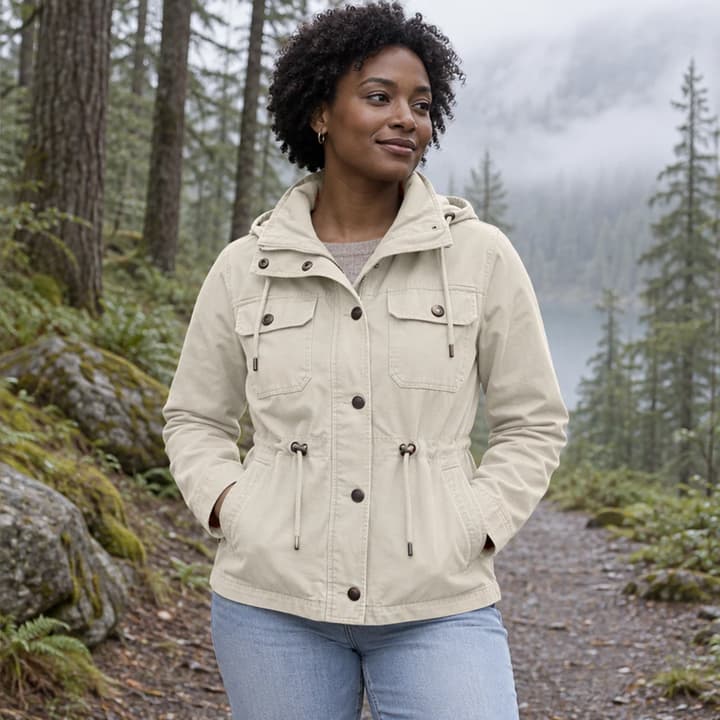
Olive canvas becomes cream while the dark fasteners and jeans keep their colors.

Black · tailored trousers · Original
Original
Black · tailored trousers · Color preview
Color preview

Black · tailored trousers

Try this color

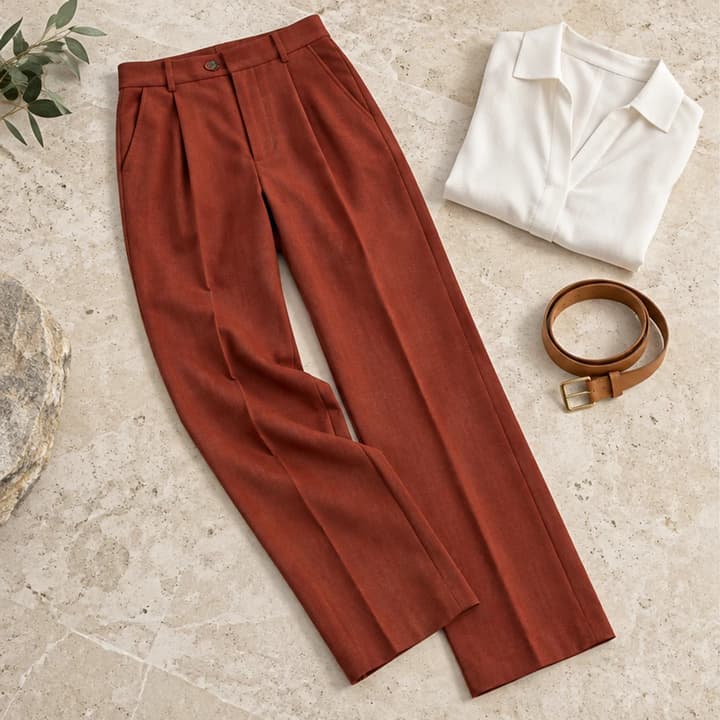
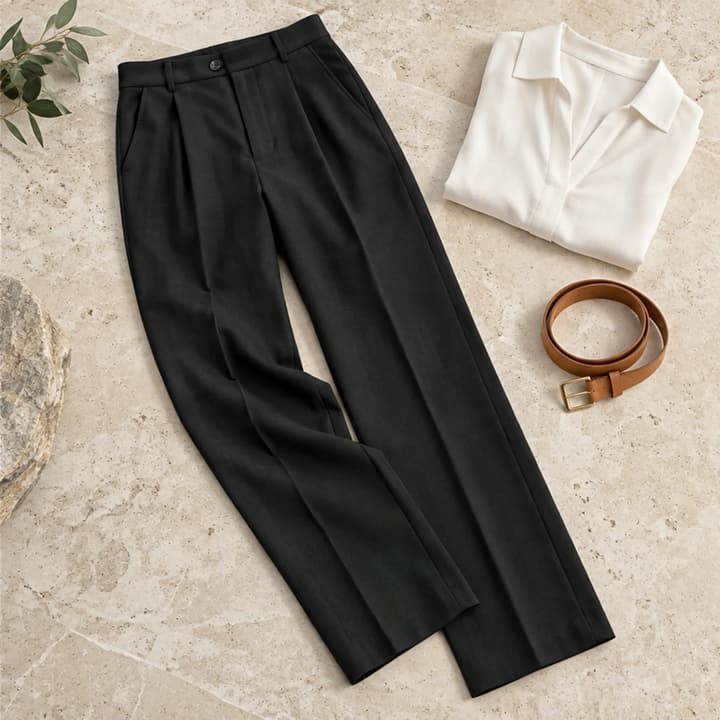
Rust-colored trousers become black in a product flat lay, with the blouse and belt unchanged.

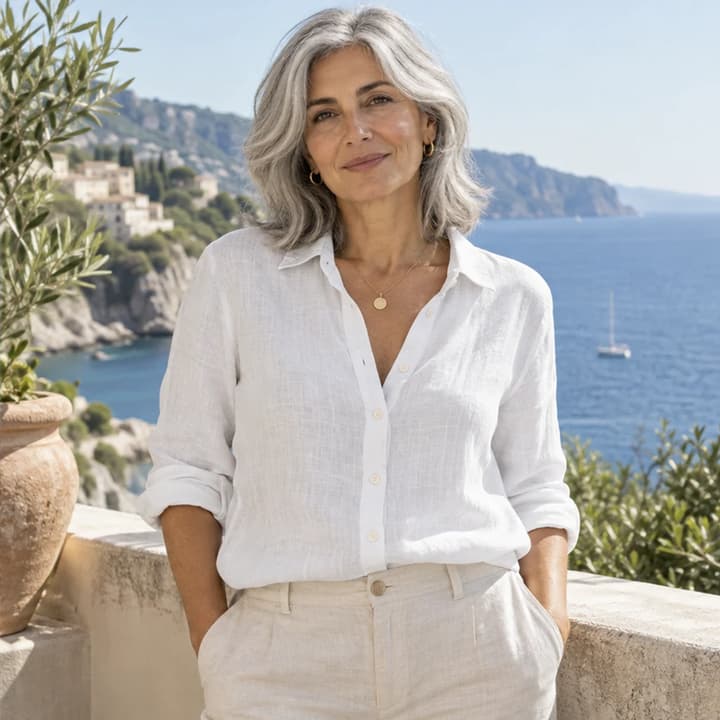
White · linen coastal blouse · Original
Original
White · linen coastal blouse · Color preview
Color preview

White · linen coastal blouse

Try this color

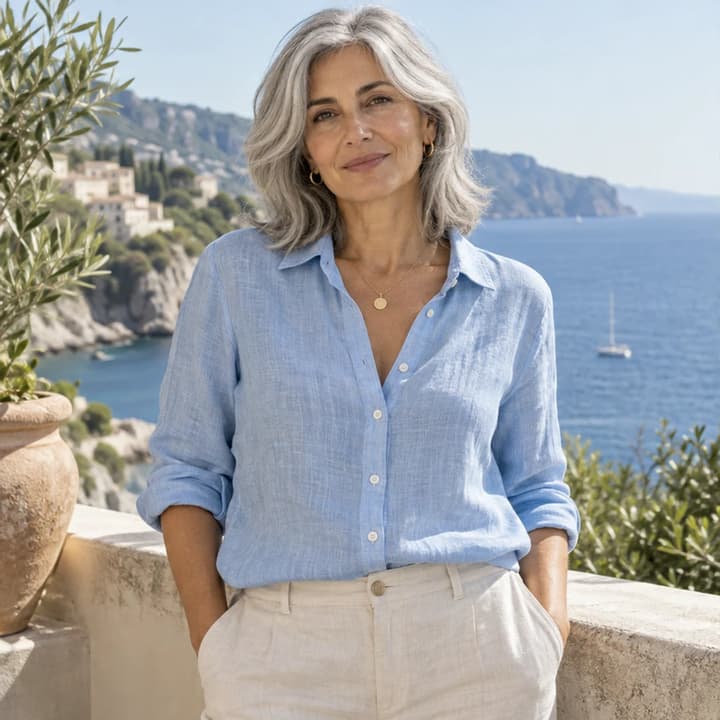
A blue linen blouse changes to white while its weave and opacity remain the comparison points.

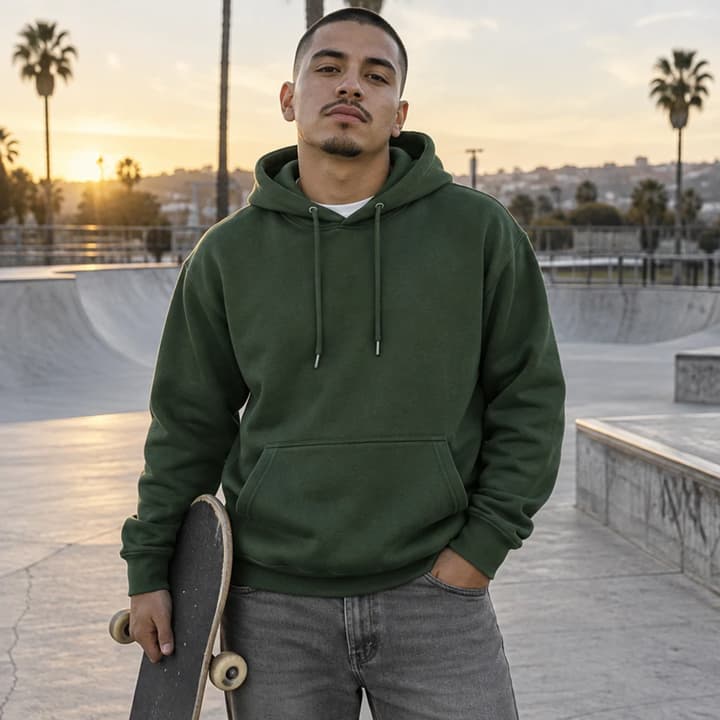
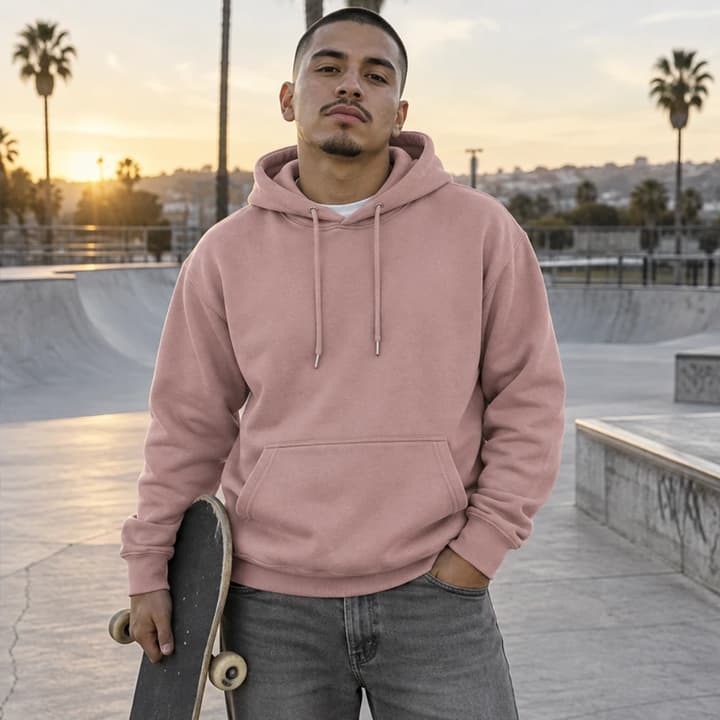
Blush · cotton hoodie · Original
Original
Blush · cotton hoodie · Color preview
Color preview

Blush · cotton hoodie

Try this color

A forest-green hoodie takes a muted pink direction at a skatepark.

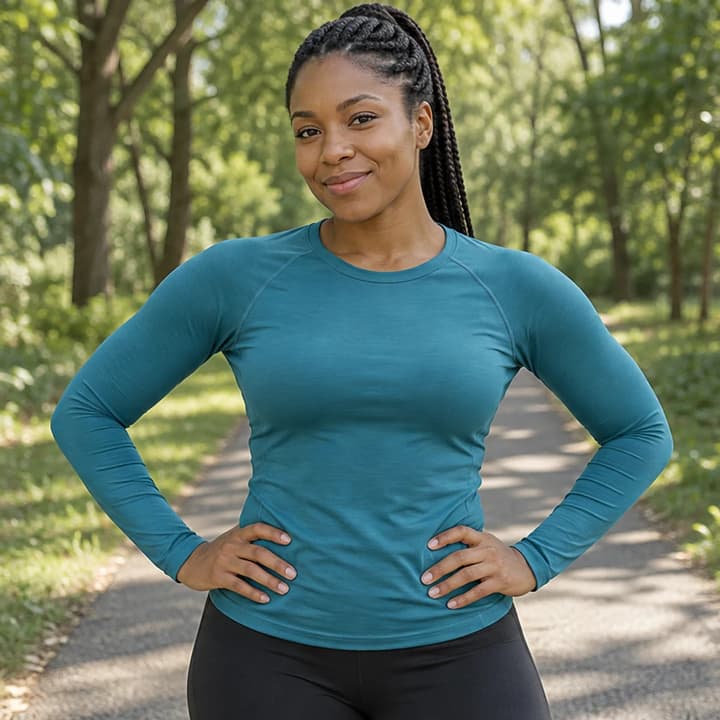
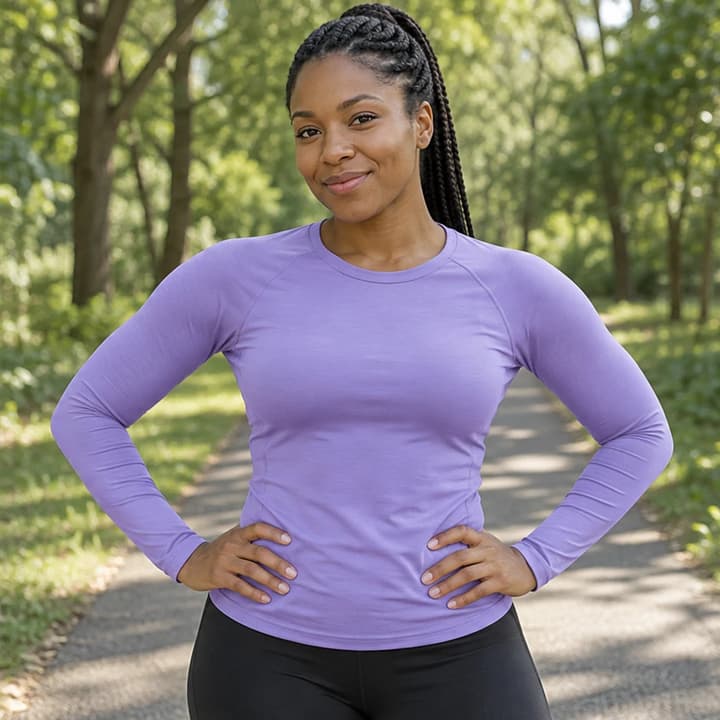
Lavender · athletic top · Original
Original
Lavender · athletic top · Color preview
Color preview

Lavender · athletic top

Try this color

Teal sportswear becomes lavender while the black leggings and park stay consistent.

What to check after recoloring clothes

Fabric and folds
Look for the original knit, weave, wrinkles and highlight pattern. Dark and light shades should still show material detail.
Return to the original and request the same material texture and folds.
Prints and trims
Compare prints, embroidery, buttons, zips and contrasting seams. They should retain their original colors.
Name the base fabric to recolor and ask to leave prints and trims untouched.
Garment boundaries
Check collars, sleeves and hems for color spill onto skin, hair or nearby garments.
Specify only the target garment; keep skin and other clothing unchanged.
Fit, person and scene
Compare the garment cut, body shape, face, pose and background. Generative editing can alter details.
Re-edit from the original photo with a fabric-color-only instruction.
Reference color
A reference gives a color direction. Lighting and fabric can make it appear lighter, darker or more saturated.
Try a reference with one dominant color, or ask for a warmer, cooler or less saturated shade. Compare sales images with the real product; this is not an exact color-code match.
Resources

Clothes color changer questions

Do I have to select a color?

No. You can upload a color reference or describe a shade in Edit instructions. Upload your original photo and provide at least one color, reference or instruction.

Are selected colors and uploaded references used together?

No. Uploading a reference clears the selected color; choosing a color removes the reference. Written color refinements take priority.

Can I change only a shirt or dress?

Yes. Name the garment in Edit instructions, such as ‘Only recolor the shirt; keep the trousers unchanged.’ Without a specified garment, the edit targets the most prominent one.

Will prints, buttons and fabric stay the same?

The edit is instructed to preserve garment structure, texture, prints and trims. Generative editing can still alter details, so compare the original and result before using it.

Can I match an exact product color?

Enter a HEX code to specify a target shade. Fabric and lighting affect its appearance, so the result is a visual preview, not a guarantee of exact HEX, Pantone or manufactured fabric color.

Is the clothes color changer free?

Generation requires an account and the credits shown before Generate. Choosing colors and loading examples spend no credits. See pricing for current plans.

How to Change Clothes Color in a Photo with AI