How to Add a Smile to a Photo with AI

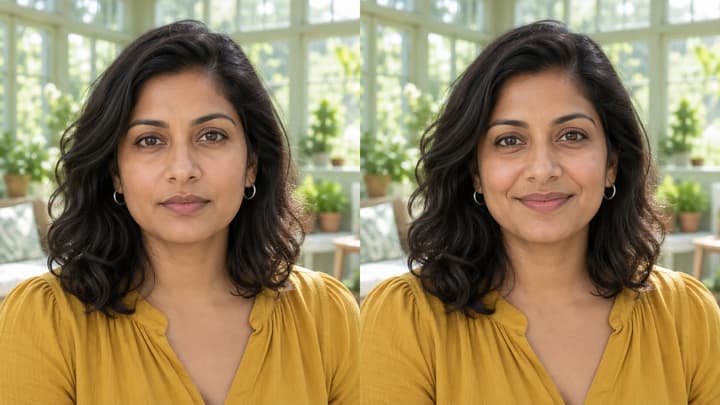
To add a smile to a photo, upload one clear portrait, select a closed-mouth or toothy-smile template, then generate and compare the face with the original. A smile includes the cheeks and eyes as well as the mouth. This guide helps you choose the reference, write a short note and spot an unnatural result.

LumiYing TeamUpdated

Start with the smile your photo needs

Choose a closed-mouth smile for a small change, especially if the original shows no teeth. Choose a toothy smile when you want a warmer, more visible expression. Teeth newly exposed by the edit are generated detail; they cannot establish what the person's real teeth look like.

For an uploaded reference, pick one clear face with a similar viewing angle and the smile you want. Check the mouth opening, lifted cheeks and eye expression. A reference with an extreme head turn, covered lips or a wide laugh gives a different direction from a subtle smile. Its identity, age, glasses and scene should not carry over.

Inspect the result at full size: lip edges should meet cleanly, teeth should not merge or repeat, and eyelids and pupils should remain plausible. Compare the jaw, nose, skin texture, hair and background too. If details drift, use Re-edit to restore the original inputs and change only the smile or its strength; avoid feeding the altered face back as a new original.

How to Add a Smile to a Photo with AI

  1. Step 1. Upload one clear portrait

    Use one visible face with readable eyes, brows and lips. A front or gentle three-quarter portrait is a useful starting point. Upload JPEG, PNG or WebP, up to 30 MB.

  2. Step 2. Choose a template or upload a smile reference

    Use the closed-mouth template for lips together, or the toothy-smile template for a small amount of visible teeth. An uploaded reference replaces the template. Choose a similar head angle and use one short edit instruction to set the strength.

  3. Step 3. Generate the expression edit

    Check the displayed credits and click Generate. Each submission makes one static image. Selecting, uploading or removing a reference does not start generation. Add a short note for the expression's intensity, such as a small smile with lips together.

  4. Step 4. Review, re-edit or download

    Compare the result with the original at full size, especially the eyes, lip edges and teeth. If the smile is too strong, use Re-edit, keep the restored original and choose a milder expression. Change one instruction at a time. Download the version you have checked.

Choose the smile and its strength

The template or uploaded reference sets the expression; the edit instruction refines its strength. Keep the original portrait for each comparison.

Choose the smile and its strength

Closed-mouth smile
Lift the mouth corners gently while keeping the lips together.
Useful when the original hides the teeth; compare cheeks and eyelids.
Toothy smile
Part the lips moderately and show a small natural amount of teeth.
Newly exposed teeth are generated details. Inspect their shape and alignment.
Laugh
Open the mouth and let the cheeks and eyes react together.
A stronger edit changes more facial detail; keep the head angle steady.
Uploaded expression reference
Use a face with a similar viewing angle and the desired smile.
Only its expression is a guide. Its identity, hair, style and background are not the subject.

Short extra-note examples

Small smile
A small closed-mouth smile; keep the original face, skin texture and scene.
The lips stay together and the eyes remain natural.
Friendly headshot
A moderate friendly smile, with only a little upper teeth showing. Keep the head angle and outfit.
Compare the visible teeth, glasses, jaw and jacket.
Reduce an exaggerated smile
Keep the chosen smile subtle. No wide laugh, no change to the background or lighting.
If it still looks too strong, start from the original with the closed-mouth template.

Examples of adding a smile to a photo

Compare two smiles on one portrait, see how an uploaded expression reference works, or load one of the other examples. Loading fills the inputs; Generate starts the edit.

One portrait, two smiles

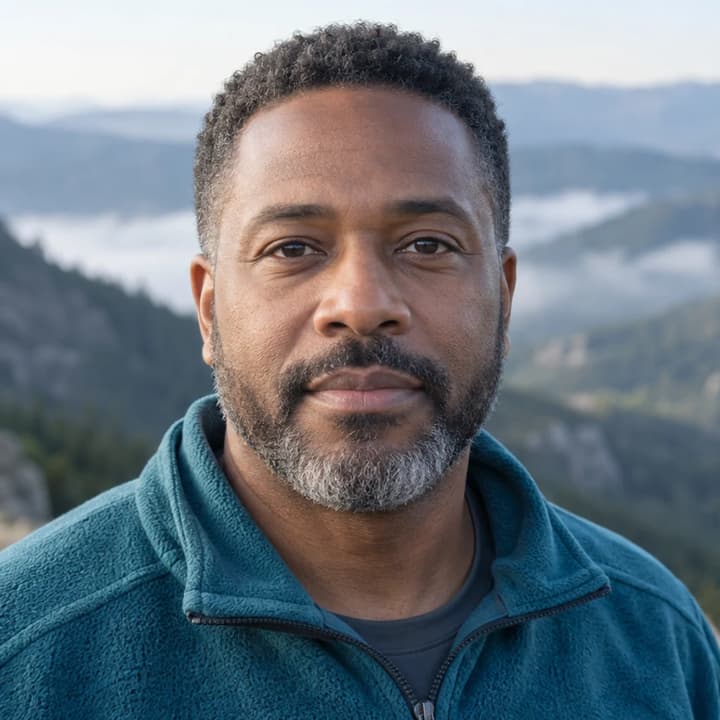
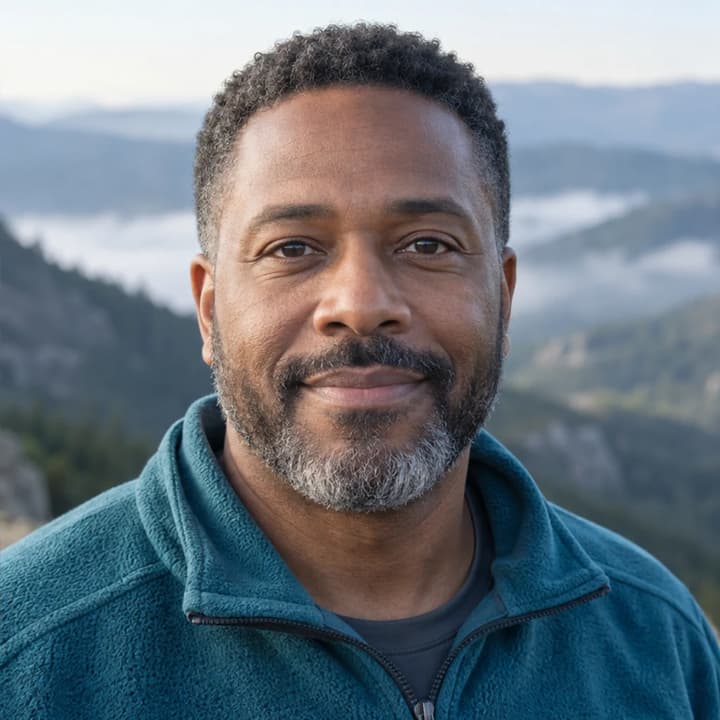
Compare a closed-mouth smile with a moderate toothy smile from the same original. Each button loads that smile separately, so you can keep the face and scene as your comparison baseline.


One portrait, two smiles · Original
Original
One portrait, two smiles · Closed-mouth smile
Closed-mouth smile
One portrait, two smiles · Toothy smile
Toothy smile

Closed-mouth smile

Try these settings

Add a gentle closed-mouth smile. Keep the lips together, the original face, skin texture, head angle and office scene.

Toothy smile

Try these settings

Show only a little upper teeth. Compare the lips, teeth and eyelids with the original.

Add a moderate friendly smile with a little upper teeth showing. Keep the original identity, head angle, beard, clothes and scene.
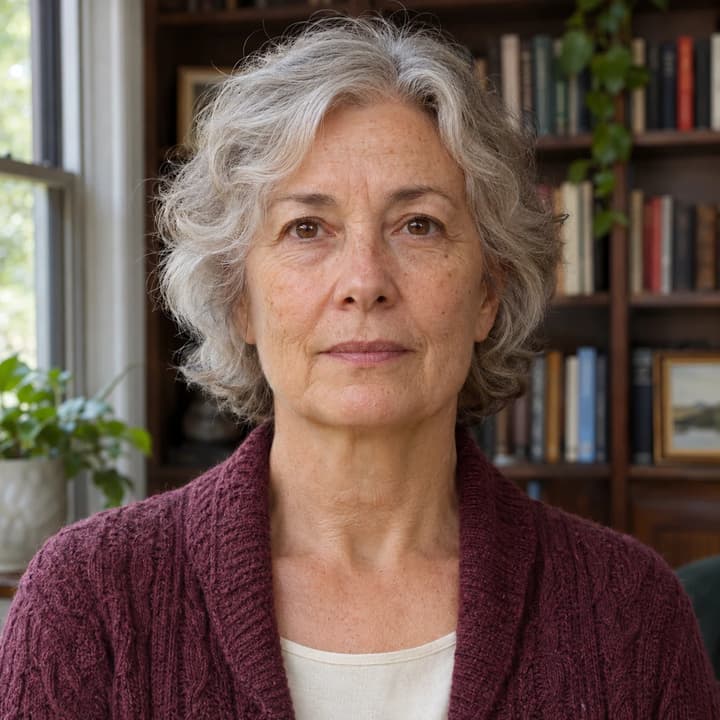

Silver-haired woman with a neutral expression in a home study
Original
Graduate with glasses showing a moderate toothy smile
Expression reference
The same silver-haired woman smiling in her original study
Result

Borrow the smile, keep the person

Try these settings

The graduation portrait supplies the smile. The silver-haired woman remains the subject: compare her age lines, hair, cardigan and room before checking the mouth and eyes.

Use the second image only for its moderate smile and relaxed eyes. Keep the woman from the first image, her age lines, silver hair, head angle, clothes and room. Do not copy the reference person's face or glasses.

Cafe portrait · soft smile · Original
Original
Cafe portrait · soft smile · Result
Result

Cafe portrait · soft smile

Try these settings

A small closed-mouth smile softens a cafe portrait. Compare the freckles, curls and window light.

Graduation photo · toothy smile · Original
Original
Graduation photo · toothy smile · Result
Result

Graduation photo · toothy smile

Try these settings

A graduate gains a friendly smile with a little upper teeth showing. Check the glasses, teeth and gown.

Outdoor portrait · gentle smile · Original
Original
Outdoor portrait · gentle smile · Result
Result

Outdoor portrait · gentle smile

Try these settings

A restrained closed-mouth smile suits a mountain portrait. Review the beard, fleece and head angle.

Studio portrait · warm smile · Original
Original
Studio portrait · warm smile · Result
Result

Studio portrait · warm smile

Try these settings

A moderate toothy smile adds warmth to a studio portrait. Check the lip edges, teeth and headscarf.

Artisan portrait · small smile · Original
Original
Artisan portrait · small smile · Result
Result

Artisan portrait · small smile

Try these settings

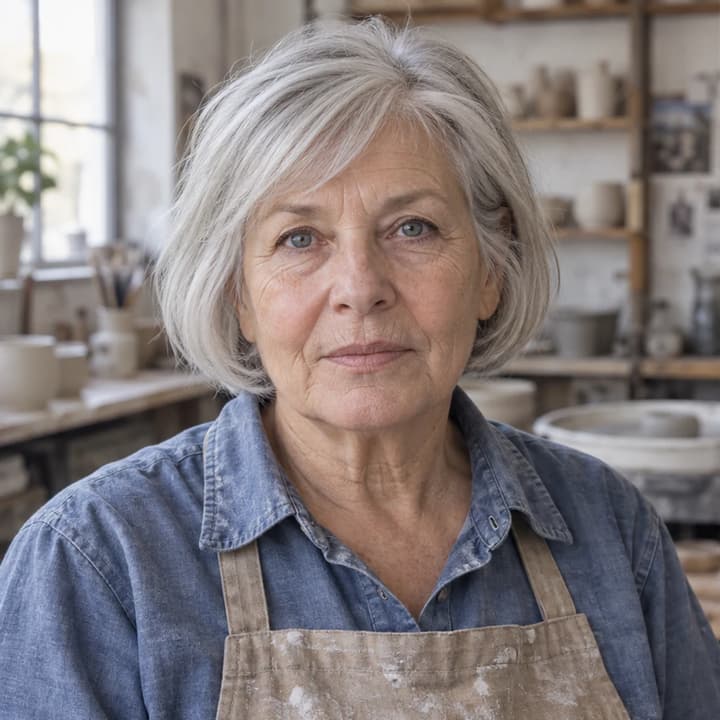
An older ceramicist gains a slight closed-mouth smile. Keep her age, wrinkles and work clothes under review.

Garden portrait · relaxed smile · Original
Original
Garden portrait · relaxed smile · Result
Result

Garden portrait · relaxed smile

Try these settings

A garden portrait gains a relaxed toothy smile. Compare the beard, sweater and dappled background.

Window portrait · subtle profile smile · Original
Original
Window portrait · subtle profile smile · Result
Result

Window portrait · subtle profile smile

Try these settings

A small closed-mouth smile gives a glasses-wearing portrait a friendly look. Check the frames and facial proportions.

Check the face as well as the expression

Identity and texture
Compare the nose, jaw, age, skin texture, hair, glasses and facial hair. A reference should not replace the person.
Use a sharper source and ask to retain the original face and texture.
Eyes, lips and teeth
Look for mismatched pupils, doubled eyelids, unnatural lip edges or invented tooth shapes. A wider smile exposes more detail to inspect.
Try a smaller closed-mouth smile or an expression reference closer to the original face angle.
Original scene
Compare the body pose, head direction, outfit, light and background. The expression request should not become a new portrait or pose.
Choose a reference with a similar head angle and ask to keep the original framing and scene.
Expression strength
Match the expression to the intended use. A small closed-mouth smile often needs fewer changes than an open-mouth laugh.
Write one intensity instruction; remove conflicting notes and start again from the original.
Resources

Questions about adding a smile

What is a good first attempt?

Choose the gentle closed-mouth smile and keep Edit instructions short. It requests a smaller change and does not need newly visible teeth.

Can AI recover my exact teeth from a closed mouth?

A photo with closed lips does not show the teeth. An open-lip result contains generated detail, so compare it carefully rather than treating it as a faithful reconstruction.

Why did the reference change my face?

The reference is intended to guide expression only, but generation can drift. Use a clearer source, a similar-angle reference and a smaller smile; reject a result with the wrong identity.

How do I try again without editing the generated face repeatedly?

Use Re-edit to restore the original Person image and expression settings, then change one reference or note. Keeping the original avoids stacking several expression edits on an already changed face.

How to Add a Smile to a Photo with AI