How to Change Pose in a Photo with AI

An AI pose generator edits the body position of a person or illustrated character in an existing image. Use a pose template for a familiar action, or a separate reference image for the movement you want. The result is a new static image that needs review.

LumiYing TeamUpdated

Two images, two different roles

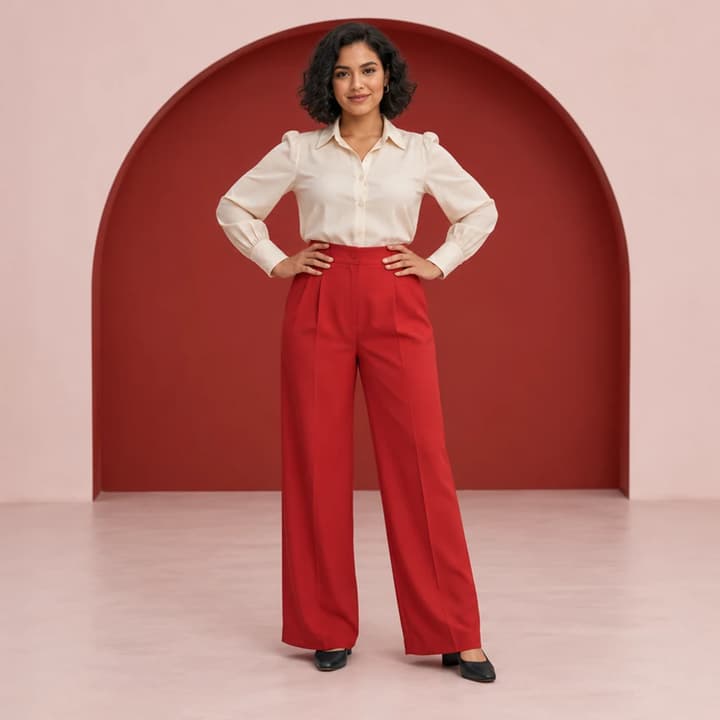
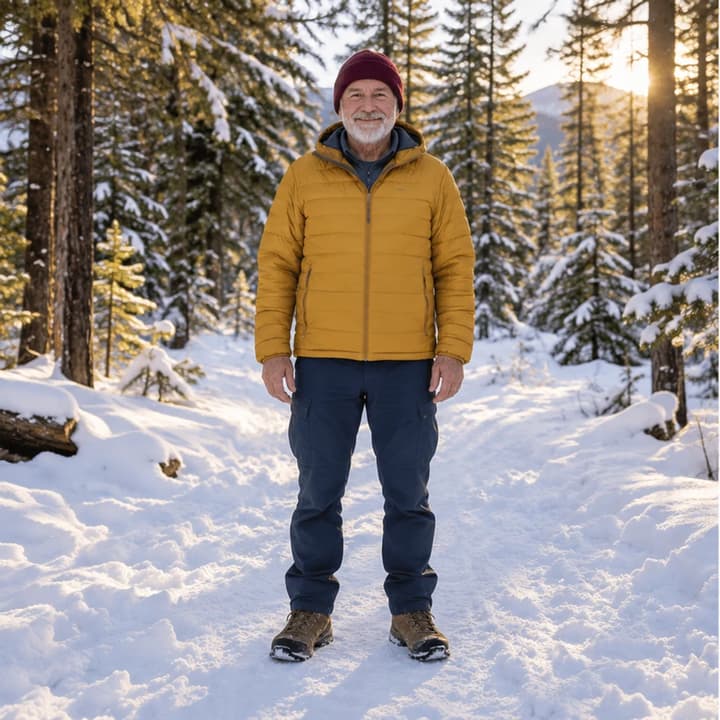
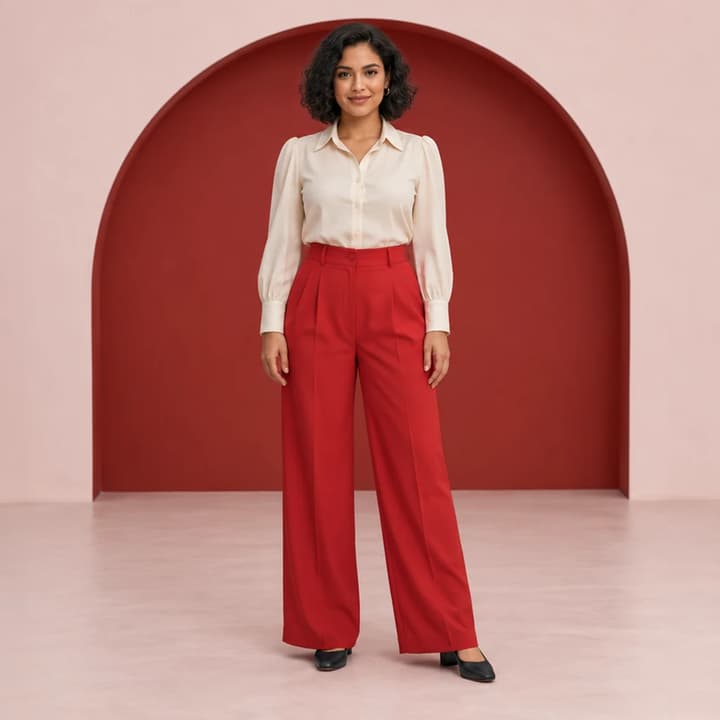
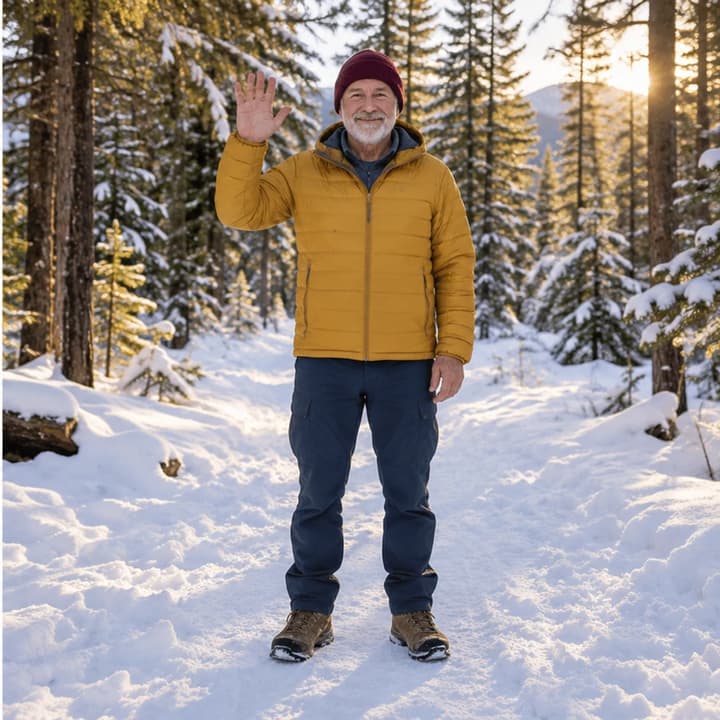
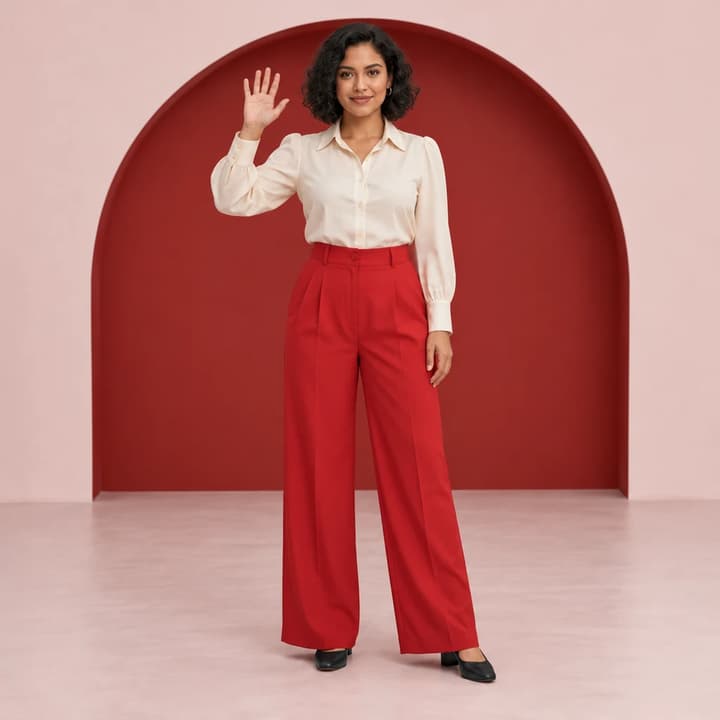
The subject is the woman in red trousers. Her image provides the person, clothes and red-arch setting to retain. The reference is a traveler waving in a snowy forest: use his body position and raised hand, without transferring his face, jacket or background.

Choose “Try these settings” on that example to load both images and the edit instruction. To use your own photos, replace the subject first, then upload the pose reference. Pick a reference with visible hands and feet and a viewing angle close to your subject.

How to change a pose from a photo

  1. Step 1. Upload your subject

    Upload a sharp image with one person or character. Include the full body where possible, especially hands, feet and the clothing you want to keep. JPEG, PNG and WebP are supported up to 30 MB.

  2. Step 2. Choose a pose or reference

    Upload the waving traveler as the pose reference. His image becomes the active pose source, replacing any selected template. Check both previews: the woman is the subject, the traveler is the pose. Use the example's short instruction to specify which outfit and background to keep. For a template instead, click one of the eight pose cards.

  3. Step 3. Generate one image

    Check the credits displayed in the workspace and click Generate. Selecting a card or trying example settings does not generate or spend credits. Each submission creates one static image.

  4. Step 4. Review and download

    For the wave, inspect all five fingers, the wrist, shoulder and both feet on the floor. Compare the face, blouse buttons, waistband and red arch with the subject image. Clothing folds can change, but reject unwanted changes to identity or garment details. Keep the original and download a result only after reviewing it.

Pose template or reference image?

Pose template or reference image?

Pose card
The body pose and orientation shown in the selected card
Choose a card whose pictured pose matches the action you want.
Pose reference
The target body pose and orientation; not the other person’s face or clothing
Uploading a reference replaces the active template. To use a template instead, click a pose card below the preview.
Extra notes
Additional direction such as facing the camera or keeping hands visible
Add a short clarification. Notes do not provide precise joint or skeleton controls.

Photo and character pose examples

Compare eight pose templates and an uploaded pose reference. Choose an example to load its images and edit instruction.

Woman in a cream blouse and red trousers standing with her arms lowered in front of a red arch
Original image
Traveler in a yellow jacket raising his right hand to wave on a snowy forest path
Pose reference
Woman waving with her right hand in the same cream blouse, red trousers and red-arch setting
New pose

From a reference: a wave, same outfit

Try these settings

The woman supplies the face, cream blouse, red trousers and studio setting. The traveler supplies only the waving pose. Check that the new image keeps her outfit and background instead of copying his jacket or the snow.

Edit instruction

Use the waving pose from the reference. Keep the original person's face, cream blouse, red trousers and red arch background.
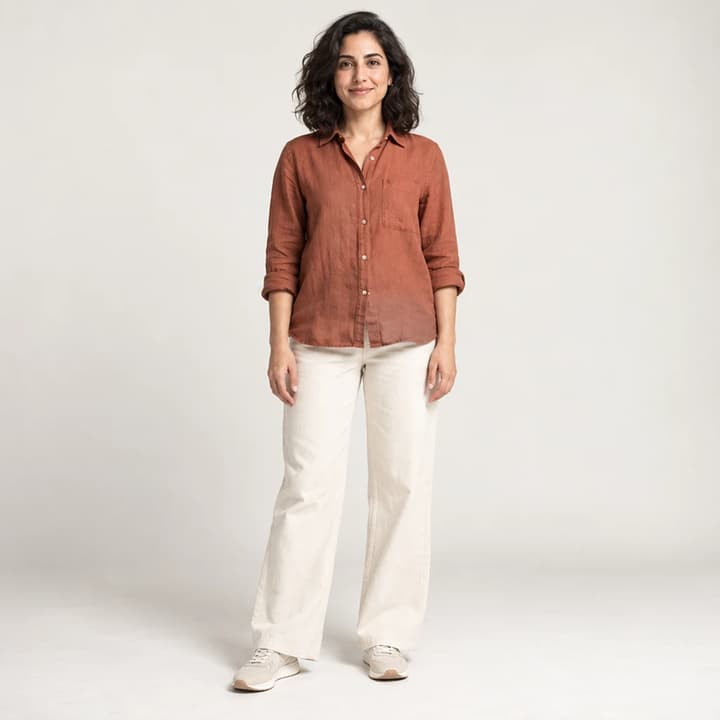
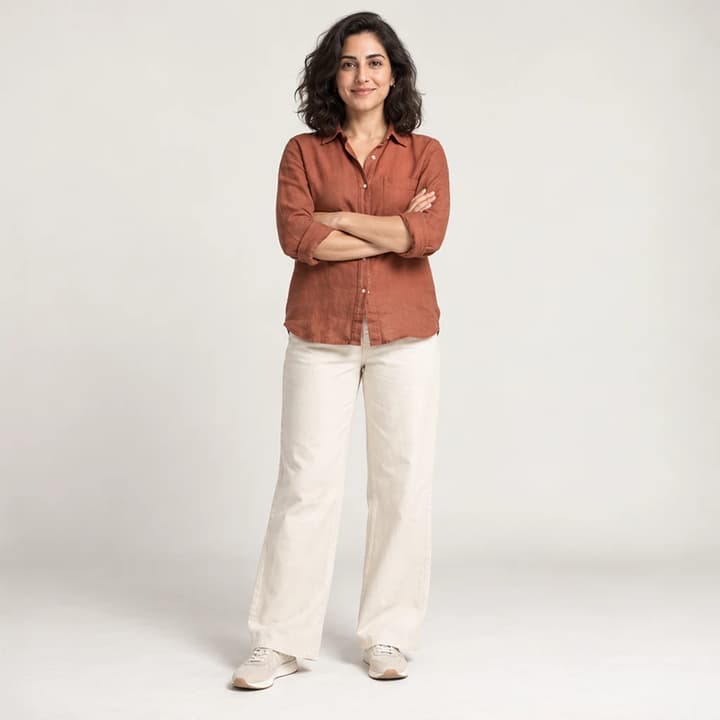
Portrait: arms crossed · Original image
Original image
Portrait: arms crossed · New pose
New pose

Portrait: arms crossed

Try these settings

A standing portrait changes to arms crossed. Check the shoulders, wrists and shirt folds.

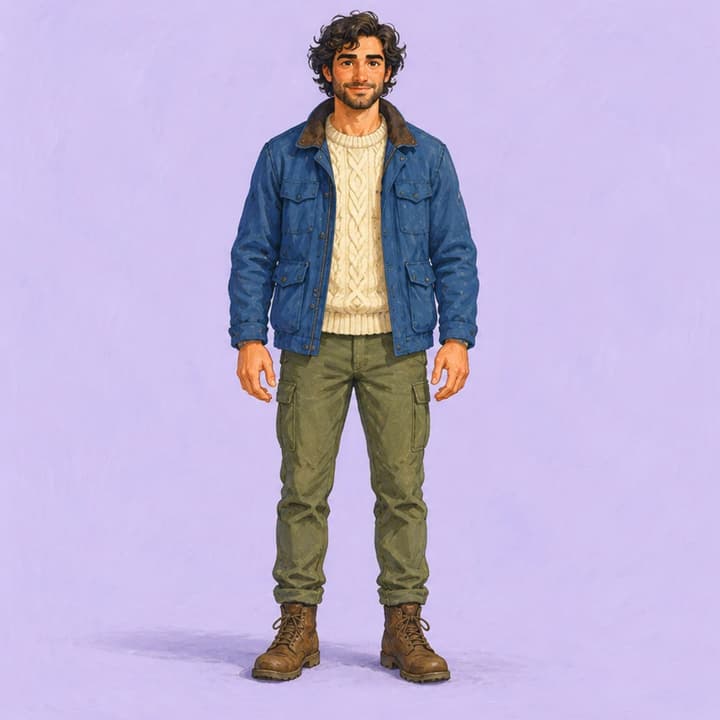
Character: walking · Original image
Original image
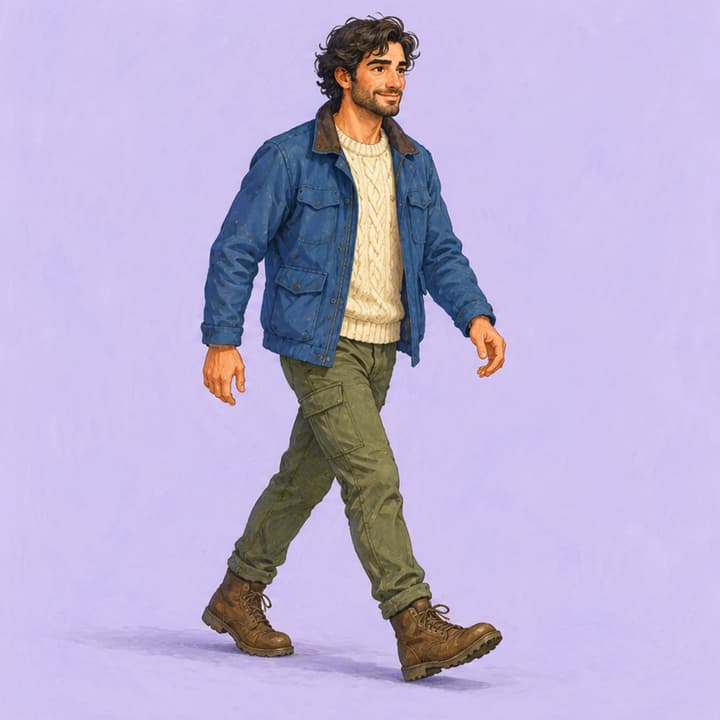
Character: walking · New pose
New pose

Character: walking

Try these settings

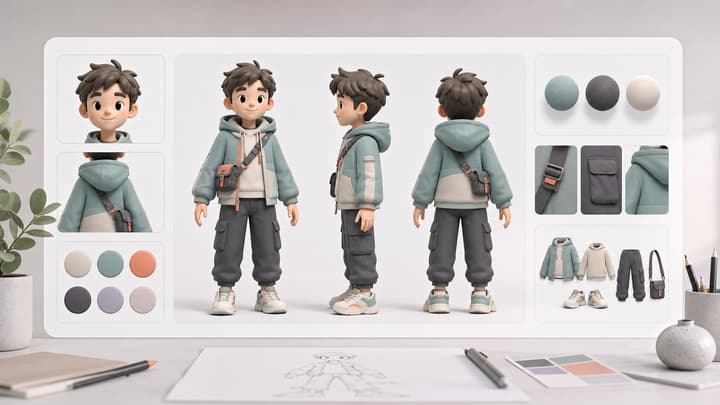
A drawn character changes from standing to walking. Check the leading foot, arm swing and outfit shapes.

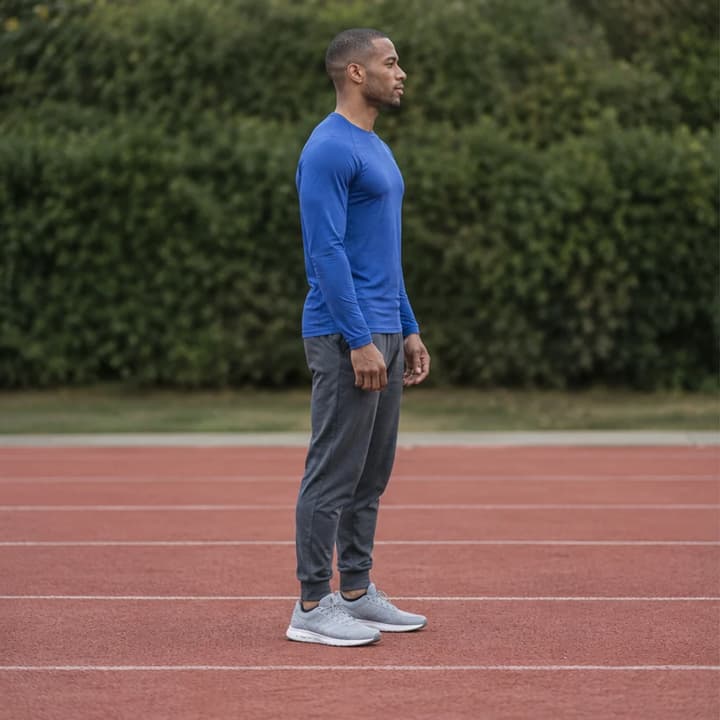
Athlete: running · Original image
Original image
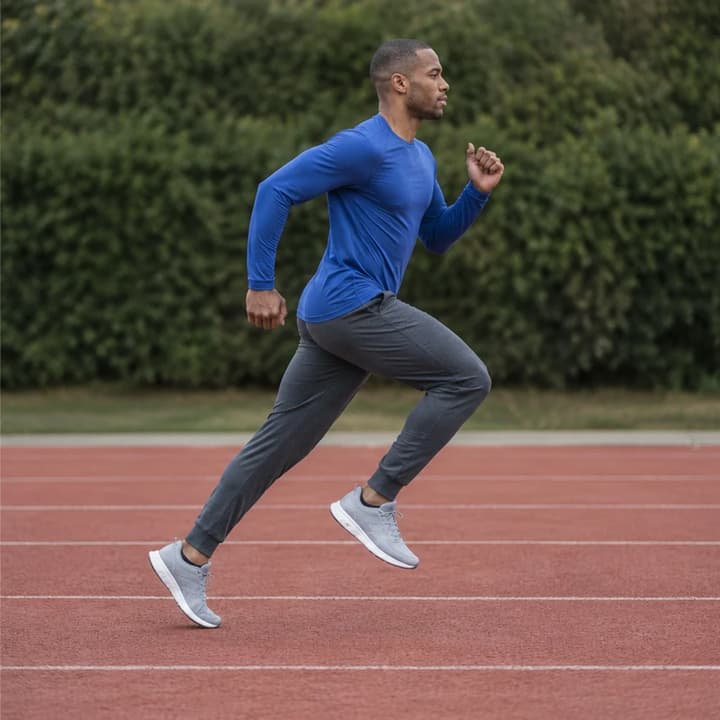
Athlete: running · New pose
New pose

Athlete: running

Try these settings

A standing athlete changes to a running stride. Check opposite arm and leg movement, knees and ground contact.

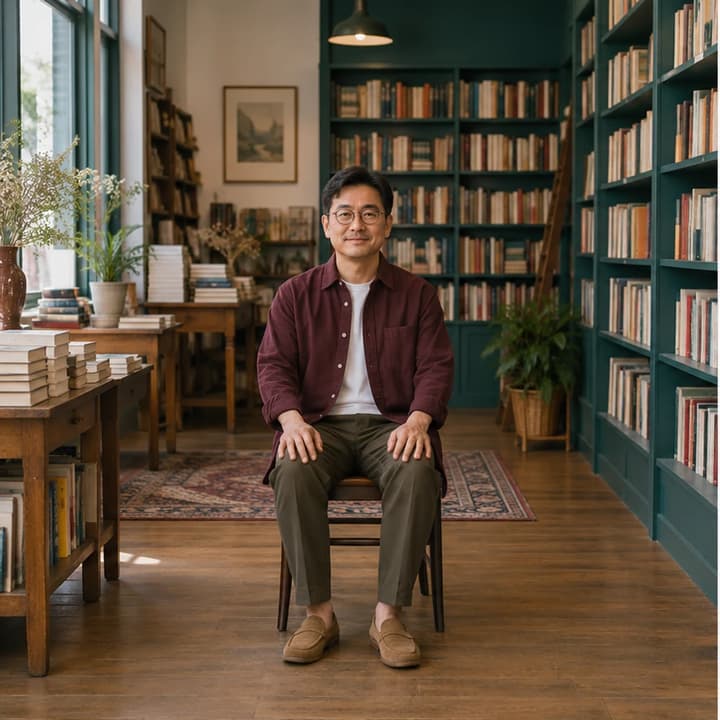
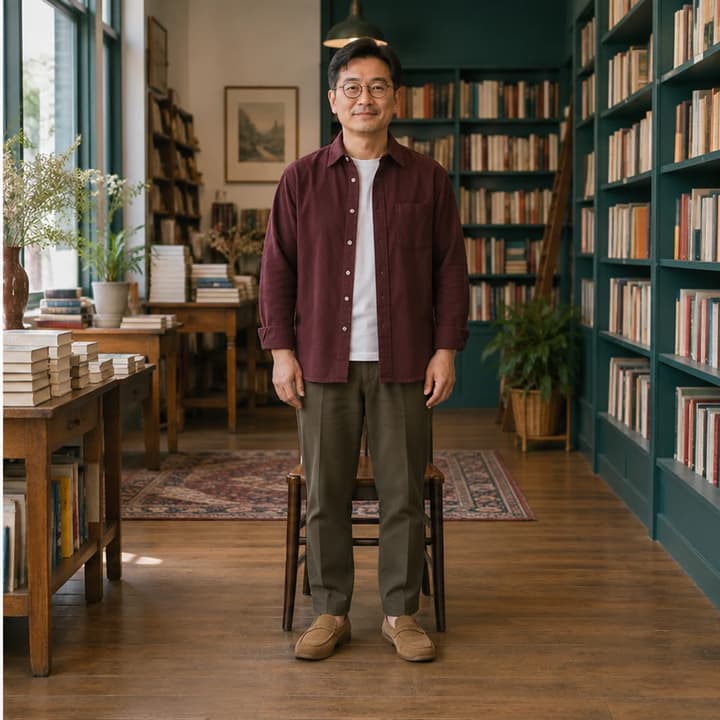
Bookshop portrait: standing · Original image
Original image
Bookshop portrait: standing · New pose
New pose

Bookshop portrait: standing

Try these settings

A seated bookseller stands in front of the same chair. Check that his glasses, overshirt, shelves and floor perspective remain recognizable.

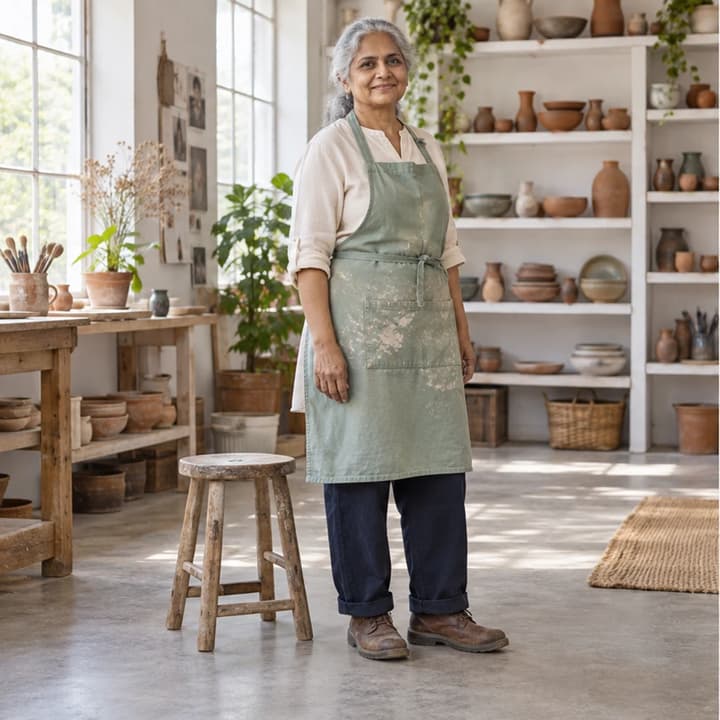
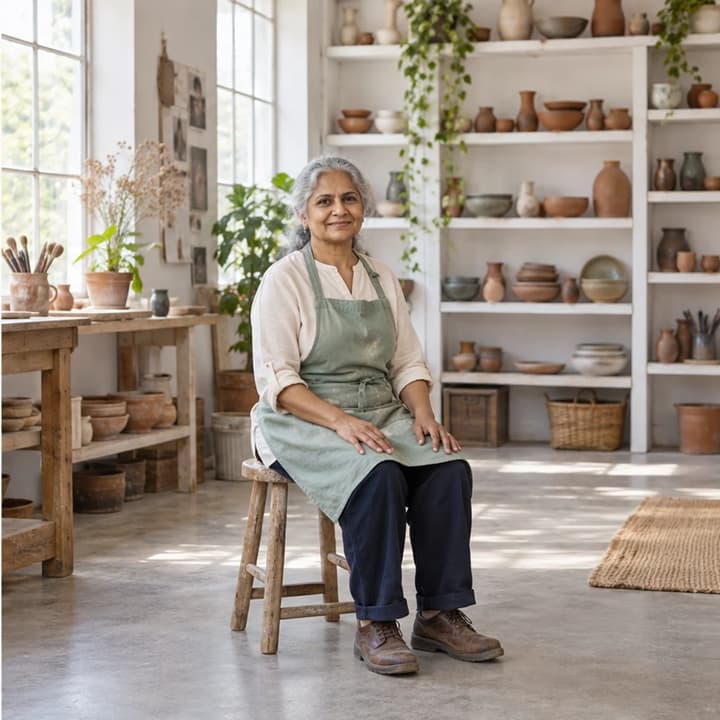
Pottery studio: seated · Original image
Original image
Pottery studio: seated · New pose
New pose

Pottery studio: seated

Try these settings

A potter sits on the stool already in her studio. Review apron folds, hands on thighs, the seat contact and both feet on the floor.

Fashion editorial: hands on hips · Original image
Original image
Fashion editorial: hands on hips · New pose
New pose

Fashion editorial: hands on hips

Try these settings

A model in red trousers moves both hands to her hips. Check elbow symmetry, blouse seams and the waistband against the original.

Winter traveler: waving · Original image
Original image
Winter traveler: waving · New pose
New pose

Winter traveler: waving

Try these settings

A traveler on a snowy trail raises one hand to greet the camera. Review the fingers, jacket sleeve and unchanged forest setting.

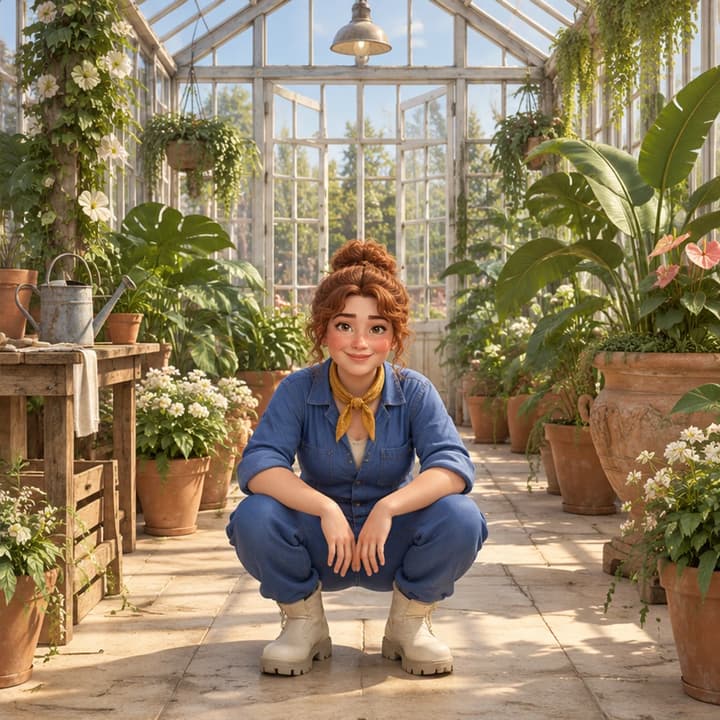
3D gardener: crouching · Original image
Original image
3D gardener: crouching · New pose
New pose

3D gardener: crouching

Try these settings

A stylized gardener lowers into a crouch in a greenhouse. Check foot contact, knee bends and the character’s 3D materials and proportions.

Check the result before using it

Face and identity
Check eyes, hair, face shape and distinguishing features.
Use a sharper source; reject results that no longer resemble the subject.
Hands and limbs
Count fingers and limbs; check bent joints and overlapping arms.
Try an action with visible hands and less overlap, or use a clearer pose reference.
Clothing details
Check color, neckline, patterns and accessories. Folds may change with the pose.
Reject changed product details when the image is intended to show clothing.
Balance and scene
Check foot placement, seat contact, shadows and the background.
Use a reference with a similar viewing angle and a plausible supported stance.

AI pose generator questions

Can I change a pose in a photo?

Yes. Upload one subject image and choose a pose card or add a pose reference. The tool generates a new static image rather than moving a rig or editing the original file in place.

Which photos work best?

Use a sharp image with one subject, clear limbs and enough space around the body. Full-body sources are easier to judge; cropped areas must be invented by the model.

Does the reference image replace my subject?

Your person image supplies the subject, clothing and scene. The selected template or uploaded reference supplies the target pose. Check that the output still resembles your subject.

Will the face and clothing stay exactly the same?

The editing instruction asks to preserve them, but this is not guaranteed. Pose changes can alter faces, folds and accessories. Compare each result before using it.

How much does the AI pose changer cost?

Review the credits shown in the workspace and the current pricing plans. Choosing templates or loading example settings costs nothing; generation uses the displayed credits.

Does this create an animation or editable 3D pose?

It creates a static image. Use the image-to-video action for a separate video task; this tool does not export a skeleton, rig or editable 3D model.

How to Change Pose in a Photo with AI